¶ Purpose
The purpose of creating a service order is to effectively manage and streamline the process of delivering services to customers.
¶ Prerequisites
The following transactions must be completed before the SAC Order transaction.
- The service code for items needs to be added. Generally, the service code series begins with the number nine.
- The Prefix Combination Setting needs to be updated.
- The PTCD-master needs to be updated if required.
- The Customer master needs to be defined.
- The Customer Delivery locations must be added to the Customer master.
- The Employee master needs to be updated if required.
- The Profit Center master needs to be checked.
- The Warehouse master needs to be defined.
- The Customer PO No. is mandatory.
- Access rights must be assigned to the responsible user for the SAC Order transaction.
¶ SAC Order
The SAC Order screen allows the user to create a service order for maintenance, repair, installation, or customer support.
Navigation: Main - Menu ⇢ Transactions ⇢ Sales ⇢ Sales Entries ⇢ Sales and Order Processing ⇢ Order Processing ⇢ SAC Order
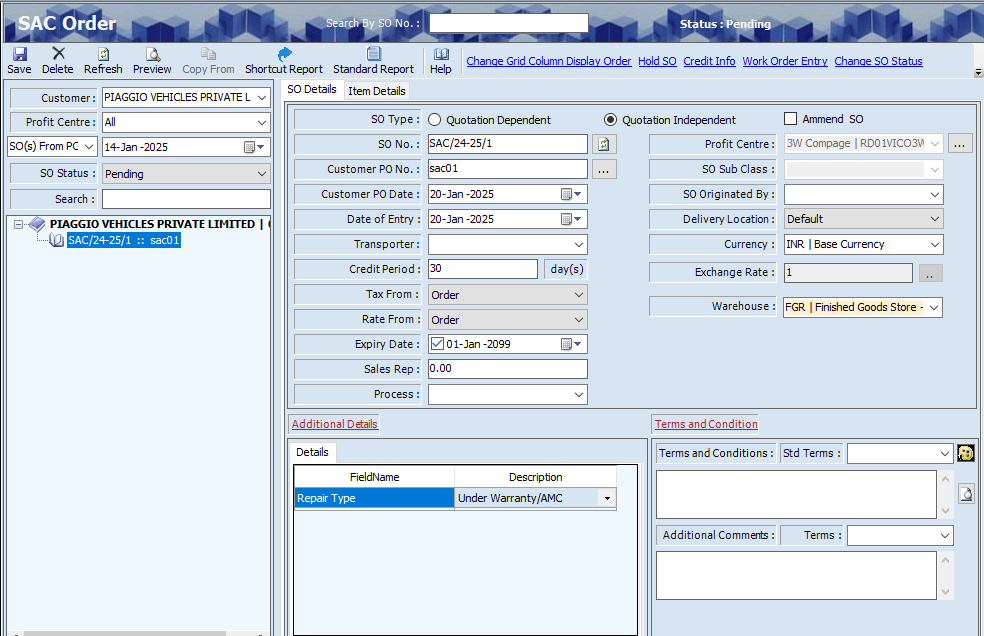
- The user should select the appropriate Customer, Profit Centre, SO (s) From and SO Status from the dropdown list to search for a particular order.
- The SAC Order screen displays the details in two tabs as mentioned below.
- Sales Order (SO) Details
- Item Details
- The Sales Order (SO) Details screen displays the order details such as the SO Type, SO Number, Customer PO Date, Date of Entry, Tax From, Rate From, Expiry Date, Profit Centre, Delivery Location, Currency, Exchange Rate, Additional Details, Terms and Conditions.
- The user must enter the Customer PO Number.
- If the user selects the Rate From and Tax From details from ‘Master’, the Price (PTCD) and Tax (GST - TCD) details will be derived from the corresponding masters.
- If the user selects the Rate From and Tax From details from ‘Order’, the user must enter the Price and Tax details.
- The user can select the appropriate Transporter from the drop-down list.
- The user can enter the Credit Period (days).
- The user can select the appropriate checkbox for Expiry Date if required.
- The user can enter the Sales Rep (Name).
- The user can edit the Profit Center details if required.
- The user can edit the Currency details if required.
- The user must select the appropriate Warehouse from the drop-down list.
- The Item Details screen displays the item details such as Item (Search)., Item, Sl. No., Stock Qty, Quantity, UOM (Unit of Measurement), Discount (Perc), Price /Unit, Discount (Amt), Packing Charges, Sub Total, Alloy, Description, Customer Part No, Tax Details, HSN, Generate SL No., Additional Details, PO SL Number and Basic Account.
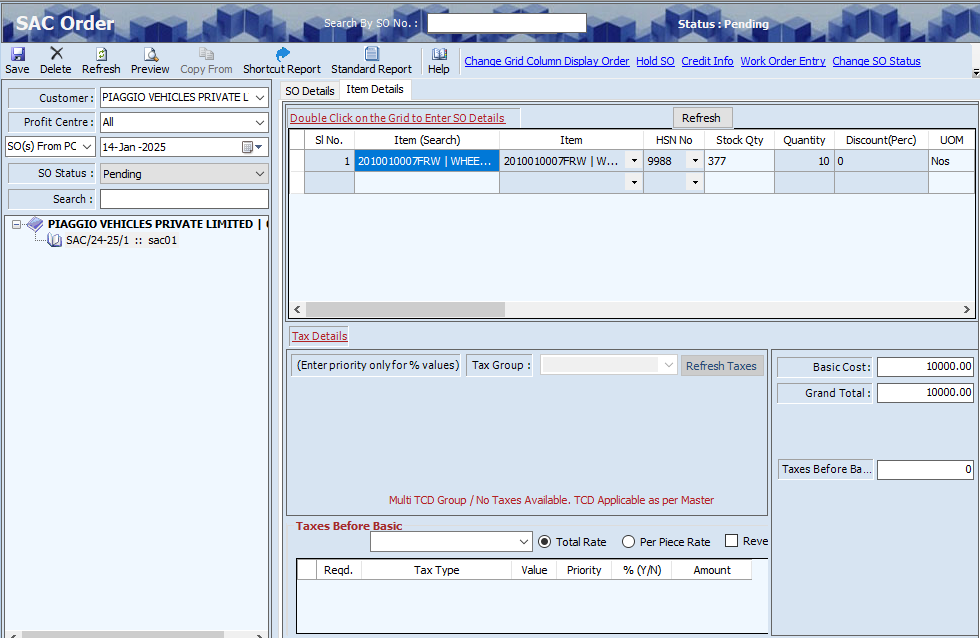
- The Material /Tax screen allows the user to add material details.

- The user must click the Material Name grid and press F3, the following material list will appear.
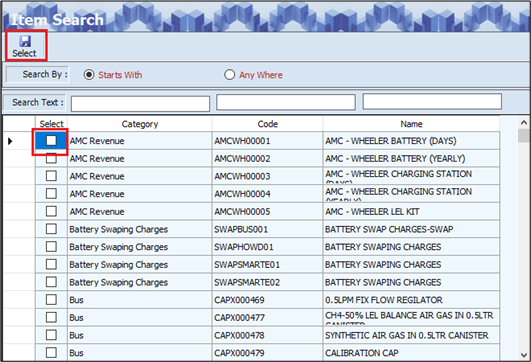
- The user can search for a particular material based on the Category, Code and Name.
- Once the user selects the appropriate material, the SL No., Item (Search), Item Description, Alloy and UOM details will appear.
- The user can click the Tax Details link, to add tax details for each listed item.
- The user can click the Additional Details link, to add additional details for each listed item.
- Double-click on the grid the following screen will appear.
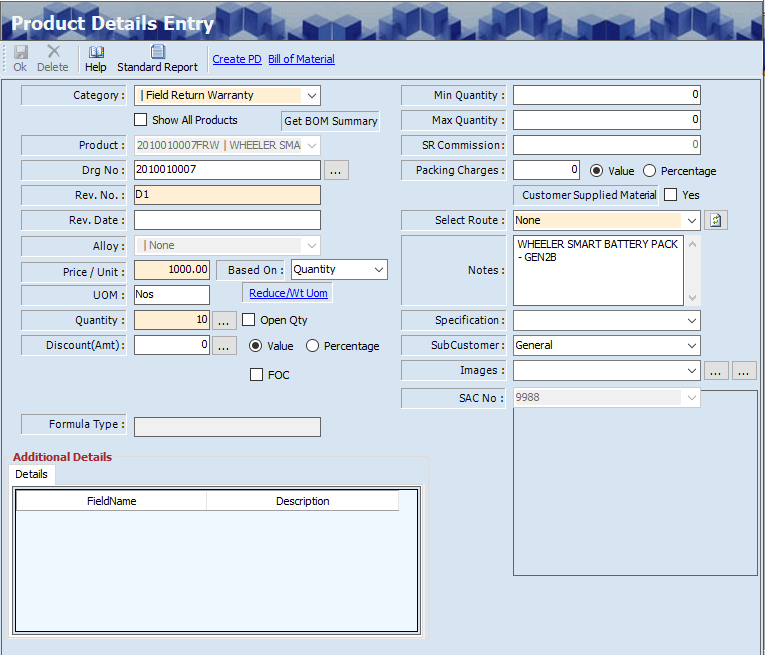
- The user must enter the Quantity.
- The user must enter the Price / Unit If the Rate is from Order.
- Click Save, the transaction reference number will appear on the left panel of the screen.
¶ Accept SO
The Accept SO screen allows the user (supplier) to accept an SAC order and enter the delivery schedule.

- The user must select the appropriate Customer from the left panel of the screen.
- Once the user selects Customer, the user must select the appropriate order reference number from the left panel of the screen.
- Click the Accept SO link, the following screen will appear.

- Click Yes, and the following screen will appear.
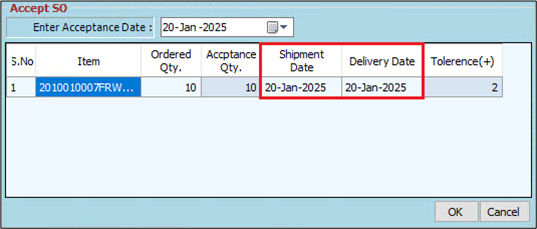
- The user must select the appropriate Shipment Date and Delivery Date from the dropdown calendar.
- The user can enter the Tolerance details if required.
- Click OK, the following screen will appear.

- The user must select the appropriate checkbox for email.
- Click Send.
- The user can click Add, to add new email addresses.
- The user must select the particular checkbox and click Delete, to delete the added or existing email addresses if required.
- The user can click Settings, to edit mail server details if required.
- Click Add, the following screen appears.
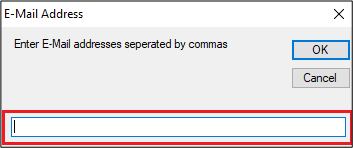
- The user must enter the E-mail address. Click Ok.
¶ View or Print Order Details
The Preview option allows the user to print or email the added or existing order details.

- The user must select the appropriate Customer and SO From (Date) from the dropdown list.
- The user must select the reference number from the left panel of the screen.
- Click Preview, the following menu will appear.

- The user must select one of the options from the HTML, Excel and Open Office.
- If the user selects the HTML option, the following screen will appear.

- The ITSPL Report Viewer screen allows the user to print details.
- Click Print, to print documents.
- Click Preview, to view details before printing.
- The user can view details in Excel and HTML format if required.
- Click Email, the following screen will appear.

- The user must enter the Subject.
- The user can upload multiple attachments if required.
- The user can delete the uploaded attachments if required.
- The user must select one of the options from Employees, Customers, Sales Rep, Suppliers, Subcontractors or Others.
- Once the user selects the appropriate option, the corresponding Email IDs will appear in the Email Address section.
- The Add Your Message Here section allows the user to add messages.
- Click Send, to send emails.
- Click Add, to add the new email address.
- Click Delete, to remove the selected email addresses.
- Click Settings, the following screen will appear.
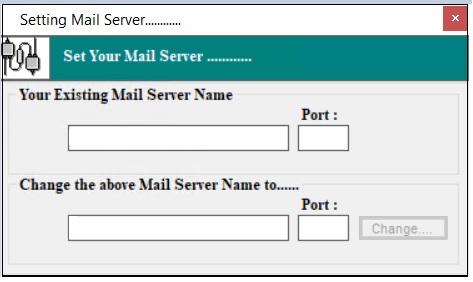
- The user must enter details of the Your Existing Mail Server Name, Port (Existing), Change the above Mail Server Name To and Port (New).
- Click Change.
¶ Hold SO
The Hold SO option allows the user (supplier) to hold a sales order if any problems occur.

- The user must select the appropriate Customer from the left panel of the screen.
- Once the user selects Customer, the user must select the appropriate order reference number from the left panel of the screen.
- Click the Hold SO link, the following screen appears.

- The user must select the appropriate status such as OK, Caution, Stop and Show History.
- Click OK, and the following screen will appear.
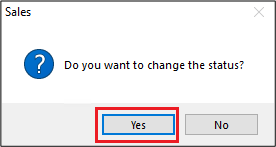
- Click Yes, to hold the sales order.
¶ Notes and Attachments
The Specific Correspondence screen allows the user to add notes and upload attachments.

- The user must select the appropriate Customer from the left panel of the screen.
- Once the user selects Customer, the user must select the appropriate order reference number from the left panel of the screen.
- Click the Notes/ Attachments link, the following screen appears.
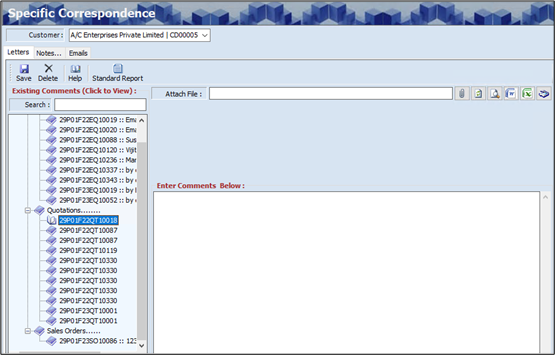
- The Specific Correspondence screen allows the user to enter details into three sections as listed below.
- Letters
- Notes
- Emails
- The Letters section allows the user to upload the file and enter the comments.
- The Notes section allows the user to enter the Note Title and Notes.
- The Emails section allows the user to add details of email such as Sent On, Reference, Attachment, Type, Received On, From and Message.
- Click Save.
- Click the Add/ Edit Contacts link, to add or edit the contact details.
¶ Change SO Status
The Change Status screen allows the user to change the status of a sales order if it is closed or cancelled.

- The user must select the appropriate Customer from the left panel of the screen.
- Once the user selects Customer, the user must select the appropriate order reference number from the left panel of the screen.
- Click the Change SO Status link, the following screen appears.
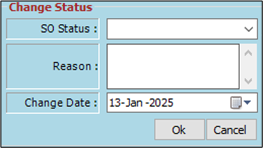
- The user must select the appropriate SO Status from the dropdown list.
- The user must enter the appropriate Reason.
- The user can select the appropriate Change Date from the dropdown calendar.
- Click OK.
- If the user selects the SO Status as Closed, the following message will appear.
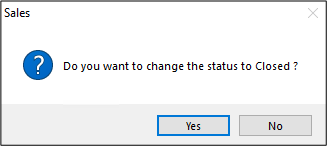
- Click Yes, to close the order.
- If the user selects the SO Status as Cancelled, the following message will appear.

- Click Yes, to cancel the order.
¶ SO message
The SO message link allows the user to add a message related to a particular sales order.

- The user must select the appropriate Customer from the left panel of the screen.
- Once the user selects Customer, the user must select the appropriate order reference number from the left panel of the screen.
- Click the SO Message link, the following screen appears.

- The Add and View Messages for the SO screen displays details such as the Customer Name, Date and Reference.
- The user can add message details.
- The user can upload the attachment if required.
- Click Save, and the following screen will appear.
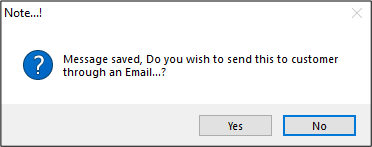
- Click Yes, to send the Email and the following screen will appear.
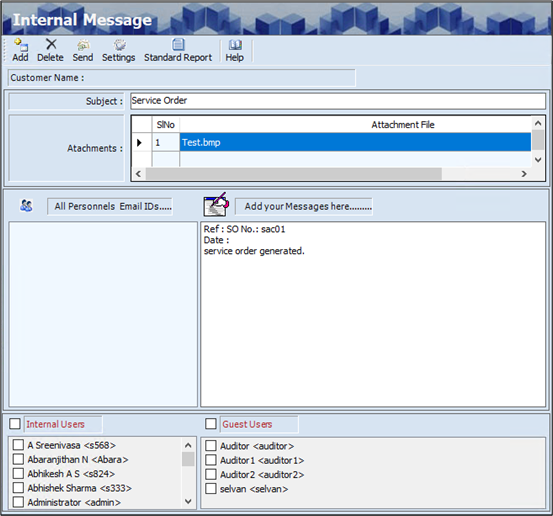
- The user must enter the Subject.
- The user can upload an attachment if required.
- The user must select the checkbox of the Internal Users or Guest Users.
- Once the user selects the appropriate checkbox the user must select the checkbox of the specific user.
- Click Send, and the following screen will appear.
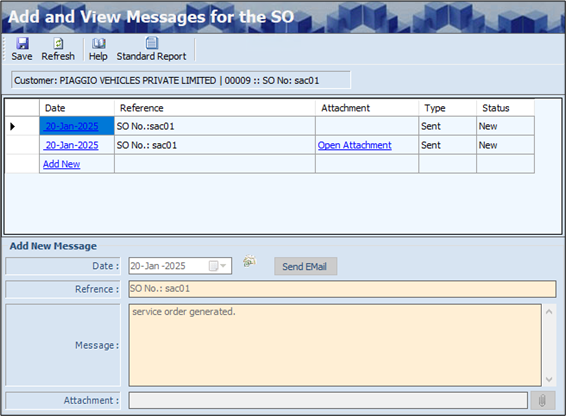
- The Add and View Message for the SO screen displays the Date, Reference, Attachment, Type and Status details will appear on the screen.
- Click Add New, to add a new message.
- Click Open Attachment, to view the attachment.
¶ SO Requirement
The Sale Order Requirement screen allows the user to add a requirement related to the specific sales order.

- The user must select the appropriate Customer from the left panel of the screen.
- Once the user selects Customer, the user must select the appropriate order reference number from the left panel of the screen.
- Click the SO Requirement link, the following screen appears.
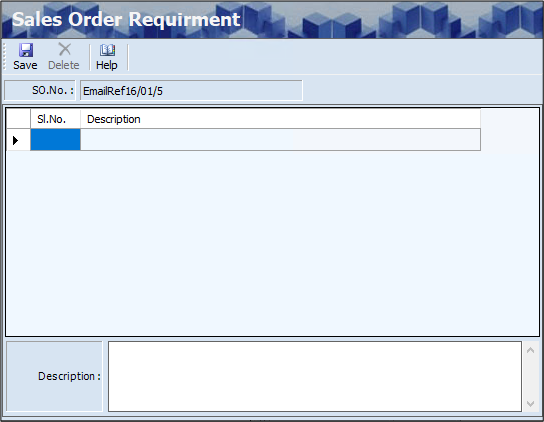
- The Sales Order Requirement screen displays the SO No. (Sales Order Reference Number).
- The user can add a description.
- Click Save, the Sl No. and Description details will appear on the screen.
¶ Copy From
The Copy Sales Order Details From screen allows the user to copy details of material from the existing sales order.

- The user must select the appropriate Customer from the left panel of the screen.
- Click Copy From, the following screen appears.
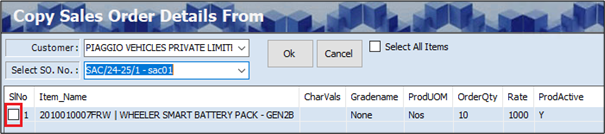
- The user must select the appropriate SO No. from the drop-down list.
- Once the user selects the appropriate Sales Order Number, the SL No., Item Name, Char Vals, Grade Name, Prod UOM, Order Qty, Rate and Prod Active details will appear.
- The user must select the appropriate checkbox of the item, to copy details.
- The user can select the Select All Item checkbox, to select all listed items.
- Click OK.
¶ Delete Order
The Delete option allows the user to delete the existing sales order.
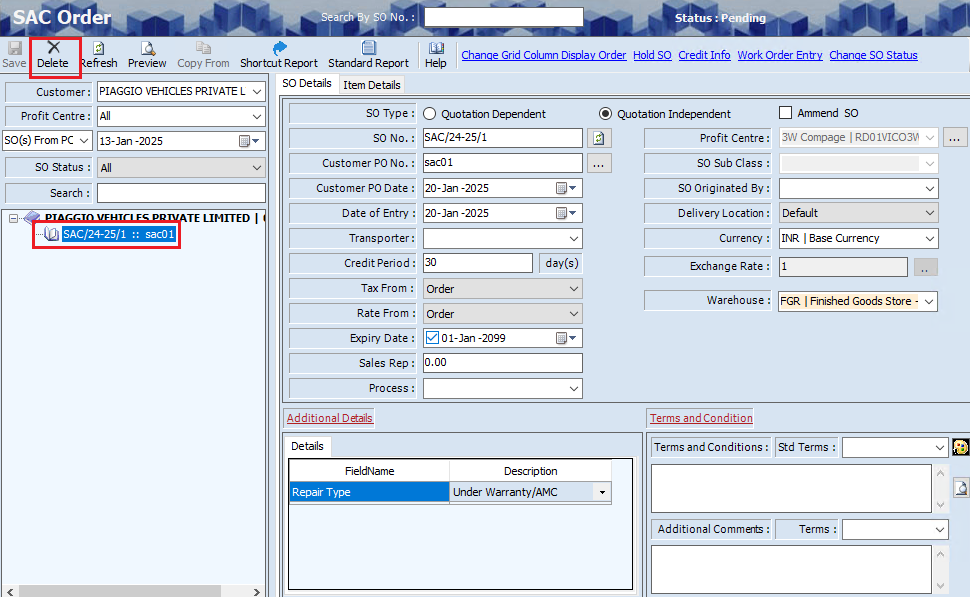
- The user must select the appropriate Customer from the left panel of the screen.
- Once the user selects Customer, the user must select the appropriate order reference number from the left panel of the screen.
- Click Delete, the following message will appear.

- Click Yes, to delete the order.
¶ Functional Use Cases
| Sl No. | Use Case | Business Scenario | Functional Outcome in ERP |
|---|---|---|---|
| 1 | Create Contract Order | The business signs an agreement with a customer to supply goods over a specified period or quantity. | The system allows users to create a sales contract defining the customer, validity, and terms. |
| 2 | Generate SAC Order from Contract | The organization wants to issue multiple sales orders against a single contract. | The system enables users to generate SAC orders referencing the contract, ensuring control. |
| 3 | Track Contract Balance | Users need visibility into the remaining quantity or value in the contract while creating SAC orders. | The system displays the available contract balance in real time during order creation. |
| 4 | Control Over-Delivery | The business wants to restrict dispatches beyond the contract limit. | The system blocks or warns users if the SAC order exceeds the contract quantity or value. |
| 5 | Monitor SAC Order Status | Management wants to track how much of the contract has been fulfilled. | The system provides reports showing contract consumption, pending quantity, and delivery logs. |
¶ Use Case Scenario
- Click here for a detailed use case scenario.
¶ Transaction Checklist
| Steps | Checklist Item | Details / Purpose |
|---|---|---|
| 1 | Create sales contract | Define the customer, contract period, items, quantity, and pricing. |
| 2 | Verify contract approval (if applicable) | Ensure the contract is approved before using it for SAC orders. |
| 3 | Initiate SAC order | Start a new SAC order and select the corresponding contract number. |
| 4 | Review available contract balance | Confirm remaining quantity or value in the contract before proceeding. |
| 5 | Add order details | Enter the item, quantity, delivery date, and pricing for the SAC order. |
| 6 | Check for over-delivery | Validate that the order quantity does not exceed the contract balance. |
| 7 | Save and confirm SAC order | Submit the SAC order for processing after validation. |
| 8 | Generate delivery and invoice | Dispatch goods and create invoice referencing the SAC order. |
| 9 | Update contract utilization | Allow the system to automatically deduct delivered quantity or value from the contract. |
| 10 | Monitor SAC order and contract reports | Use reports to track SAC order status, pending deliveries, and contract fulfillment. |