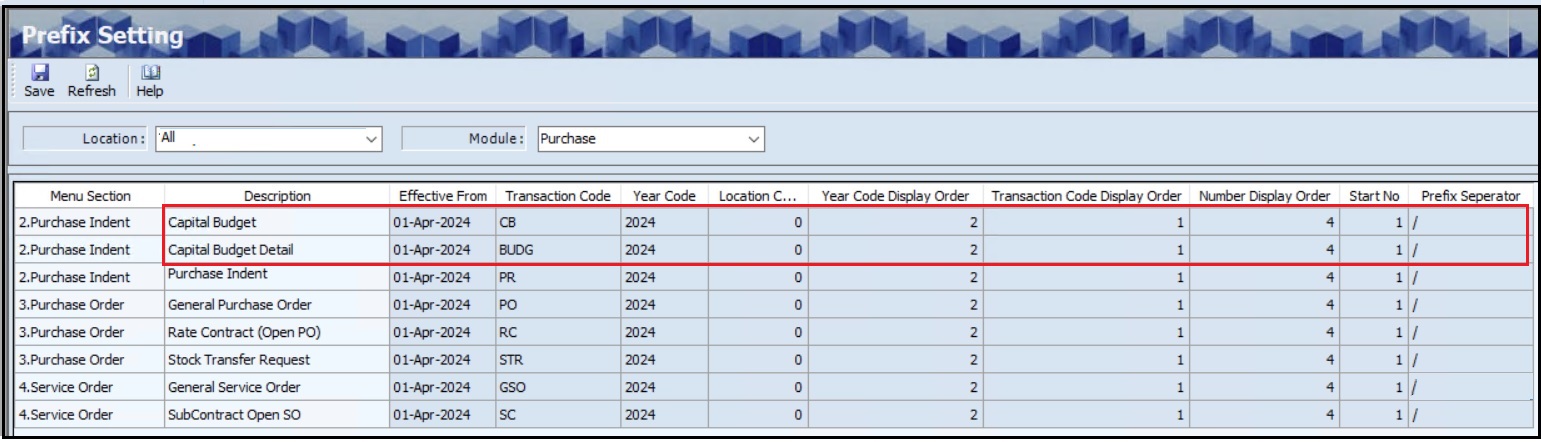
Companies use capital budgeting to evaluate major projects and investments, such as new plants or equipment. The process involves analysing a project’s cash inflows and outflows to determine whether the expected return meets a specified benchmark.
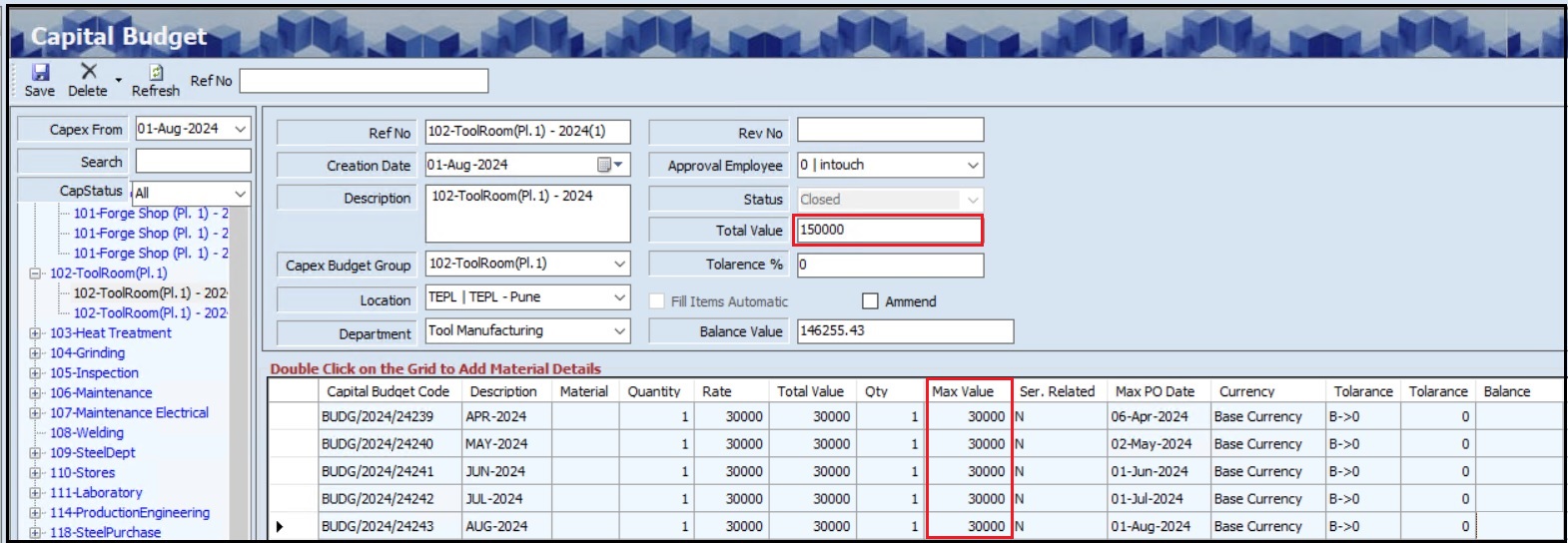
The Capital Budget screen allows the user to create or add item-wise capital budgets for the department.
Navigation: Main - Menu → Transactions → Purchase → Purchase Entries → Purchase → Show List → Purchase Indent → Capital Budget
The Capital Budget screen displays the details such as Ref No, Creation Date, Capex Budget Group, Location and Status.
The user must enter the Description.
The user can select the appropriate Location from the dropdown list.
The user must select the appropriate Department and Approval Employee from the dropdown list if required.
The user can enter the Rev No. if required.
The user must enter the Total Value.
The user can enter the Tolerance % if required.
If the user selects the Fill Item Automatic checkbox, the Item Master Rate checkbox will appear, and the Rate will be derived from the PTCD master.
The user must enter the Rate if the user does not select the Fill Item Automatic Checkbox.
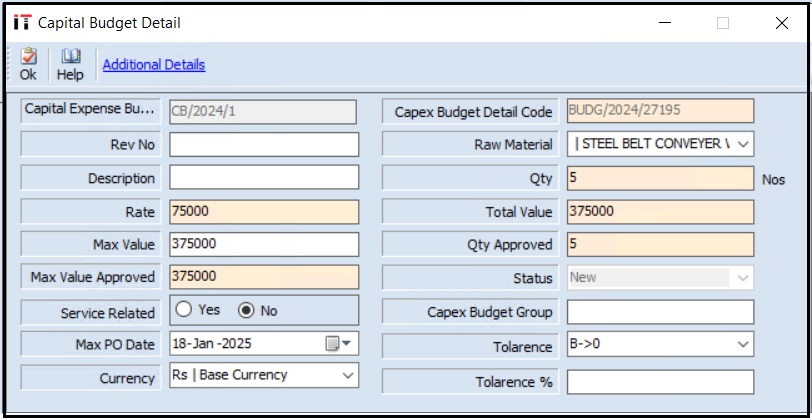
Double click on the grid to add capital budget detail and the following screen will appear.
The Capital Budget Detail screen displays the details such as Capital Expense Budget, Capex Budget Detail Code, Status, Service Related, Capex Budget Group, Max PO Date, Tolerance, Currency and Tolerance %.
The user must select the appropriate Raw Material from the drop-down list.
The user must enter the Quantity details.
The user must enter the Rate if the user does not select the Fill Item Automatic Checkbox.
Once the user enters the Rate details, the Total Value, Max Value, Qty Approved and Max Value Approved details will appear automatically.
Click the Additional Details link to add additional details if required.
Click OK.
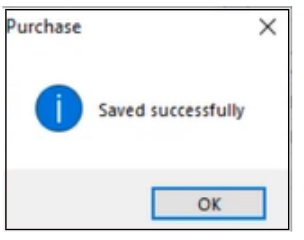
Click Save, the Saved successfully message will appear.
Click OK.
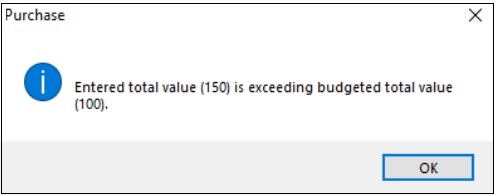
Note: If the Total Value of the listed item is more than the Total Value of the Capital Budget, the following message will appear.