¶ Purpose
The screen for Capital Budget Approval Setting is provided with a few restrictions and validations that are going to help the user at the transaction level.
¶ Prerequisites
The following transactions must be completed before the Capital Budget Approval Setting transaction
- The user access rights transaction must be completed.
- The Employee master needs to be checked.
- The employee list will appear based on the selected location.
¶ Capital Budget Approval Setting
The Capital Budget Approval Setting screen allows the user to create multiple levels for Capital Budget approval.
Navigation: Main - Menu → Transactions → Purchase → Purchase Entries → Purchase → Settings → Capital Budget Approval Settings
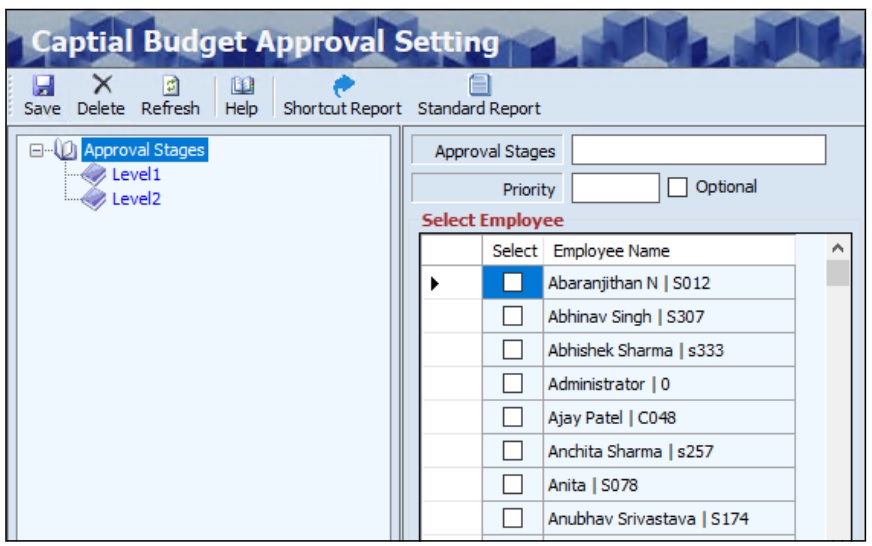
- The user must click the Approval Stages from the left panel of the screen.
- The user must enter the details such as Approval Stages and Priority.
- If the user selects the Optional checkbox, that stage can be bypassed and the budget can be approved directly at the next approval stage.
- The user must select the appropriate checkbox for approving Employee Name.
- Click Save, the Approval Stages name will appear on the left panel of the screen.
- The user can select the particular Approval Stage name from the left panel of the screen, to view the level details.
- Click Delete, to delete the added details if required.
¶ Functional Use Cases
| SL No. | Use Case | Business Scenario | Functional Outcome in ERP |
|---|---|---|---|
| 1 | Define Approval Stages | The user needs to create multiple stages for capital budget approval. | The system allows the user to define approval stages with priority for Capital Budget process. |
| 2 | Assign Approving Employees | The user assigns employees to each approval stage. | The system links the selected employees as approvers for the corresponding stage. |
| 3 | Set Optional Approval Stages | The user decides that some approval stages can be bypassed if not required. | The system marks those stages as optional, allowing the budget to move to the next stage. |
| 4 | Save Approval Stage Settings | The user saves the defined approval stages and employee mapping. | The system stores the approval stages and displays them in the left panel. |
| 5 | Delete Approval Stage Details | The user needs to remove an unnecessary or incorrect approval stage. | The system deletes the selected stage and updates the approval hierarchy. |
¶ Use Case Scenario
- Click here for a detailed use case scenario for the transaction.
¶ Transaction Checklist
| Steps | Checklist Item | Details / Purpose |
|---|---|---|
| 1 | Verify user access rights | Ensure that the user has the necessary rights to configure Capital Budget approvals. |
| 2 | Check Employee Master | Confirm that all required employees are created and active in the Employee Master. |
| 3 | Validate location assignment | Ensure the employee list appears correctly based on the selected location. |
| 4 | Define approval hierarchy need | Identify the number of approval levels required for Capital Budget approval. |
| 5 | Prepare approver list | Collect the names of employees who will act as approvers at each stage. |
| 6 | Confirm optional stage rules | Decide which approval stages (if any) can be marked as optional for bypassing. |