¶ Purpose
The Pending Packing List to be Invoiced screen is used to generate an invoice for shipping items that are packed and are waiting to be dispatched.
¶ Prerequisites
The following transactions must be completed before the Invoice - Regular transaction.
- The Prefix Combination Setting needs to be updated.
- The user access rights transaction must be completed.
- The Customer master needs to be defined.
- The Customer Delivery locations must be added to the Customer master.
- The Packing List orders must be completed.
¶ Invoice - Regular
The Invoice - Regular screen allows the user to create an Invoice for the specified items from the Packing List Based on Order.
Navigation: Main - Menu → Transactions → Shipping → Shipping Entries → Show Tree → Shipping Module → Invoice – Regular

- The user can search for a packing list based on the Customer and Profit Centre.
- Click Refresh, the packing list pending for creating an invoice will appear.
- The Pending Packing List to be Invoiced screen displays details such as the Customer Name, Packing List No., Packed Date, Basic Amount, SO No., SO Date, Shipped and Ship Date.
- The user must double-click on the particular Packing List Number, and the following screen will appear.

- The Invoice Details screen displays details such as the Invoice No., Invoice Type, Invoice VAT No. and Trans Number.
- The user can click the Credit Information link, to view the customer credit details.
- If the selected transaction is audited, the user can select the Audited checkbox.
- The Invoice details screen allows the user to enter invoice details into two sections as listed below.
- Invoice Details
- Product Details
- The Invoice Details section displays details such as the Customer, Bill To, Ship To, Sale Type, Profit Centre, Invoice Date, Packing List Date, Transaction Date, SO Number, Packing List No., Credit Period (Days), Currency, Exchange Rate and Additional Details (Field Name and Value).

- The user must select either Shipped or Not Shipped as the status.
- The user can view the uploaded attachment.
- The user can select the Bank Account details from the dropdown list.
- The user must enter the Preparation Time.
- The user can round up or round down the total invoice amount.
- The user can edit the Transaction Date if required.
- The user can select the name of the Sales Representative from the dropdown list.
- The user can select or enter the Additional Details (Field Name and Value) if required.
- The Product Details section displays details such as Item, Alloy, Dispatch Quantity, Price per Unit, Discount, Packing Charges, Sales Order No., MRP Price, Serial Number Fields, Weight, Customer Part No., Tax Details, HSN Code, Subtotal, Tax Details, Basic in INR, Grand Total, and After Round Off.

- The user can click on the Tax Details link to view tax details for each item, and the following screen will appear.

- The Line Wise Taxes screen displays details such as the Basic Amount, Tax Amount, Subtotal, TCD Group, Required (Tax Type, Value, Order By, %(Y/N) and Value in INR).
- Click Save, the following message will appear.

- Click Yes, the following message will appear.

- Click Yes, the following message will appear.

- Click OK, the transaction number will disappear from the packing list pending for invoices.
¶ Change Grid Column Display
The Change Grid Column Display Order link allows the user to change the sequence of the columns if required.

- Click on the Change Grid Column Display Order link and the following message will appear.

- Click OK and the user must select the column name, drag from the current position and drop it in a new position.

¶ Invoiced Packing Lists
The Invoiced Pack Lists link allows the user to view a list of invoiced packing lists.

- Click the Invoiced Pack Lists link, the list invoiced packing list will appear as shown below.

- The user can search for invoice details based on the Customer, Sales Type, Profit Center, From and To.
- The Search Option field allows the user to search for invoice details based on the Transaction Number, Customer Name, Packing List Number, Invoice Number, Invoice Date, Basic Amount and SO Number.
- The Invoiced Packing Lists screen displays details such as Transaction No., Customer Name, Packing List No., Packed Date, Invoice No., Invoice VAT No., Invoice Date, Basic Amount, Credit Period and Sales Order Number.
- Click the View link, to view invoice details.
- Click the Delete link, to delete the Invoice details.
Note: The Delete option will be available only if the Shipment Entry has not been completed. Once the invoice is deleted, the stock will be restored as of the date the invoice was deleted.
¶ View or Print Invoice Details
The Preview option allows the user to print the added or existing invoices.

- Click Preview, the following screen will appear.

- The ITSPL Report Viewer screen allows the user to print invoices.
- Click Print, to print documents.
- Click Preview, to view details before printing.
- The user can view details in Excel and HTML format if required.
- Click Email, the following screen will appear.
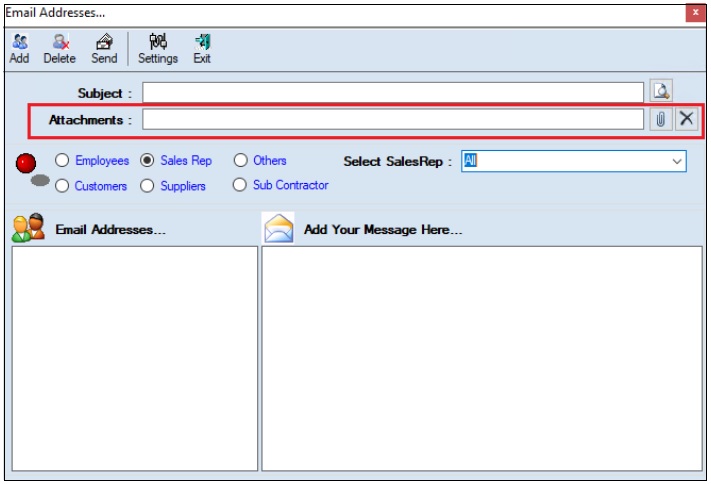
- The user must enter the Subject.
- The user can upload multiple attachments if required.
- The user can delete the uploaded attachments if required.
- The user must select one of the options from Employees, Customers, Sales Rep, Suppliers, Subcontractors or Others.
- Once the user selects the appropriate option, the corresponding Email IDs will appear in the Email Address section.
- The Add Your Message Here section allows the user to add messages.
- Click Send, to send emails.
- Click Add, to add the new email address.
- Click Delete, to remove the selected mail ids.
- Click Settings, the following screen will appear.
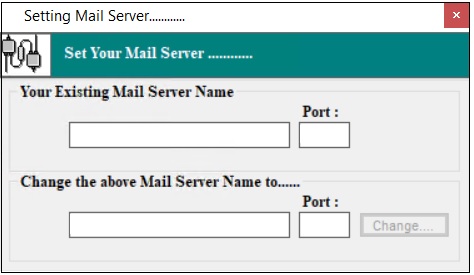
- The user must enter details of the Your Existing Mail Server Name, Port (Existing), Change the above Mail Server Name To and Port (New).
- Click Change.
¶ Functional Use Cases
| Sl. No. | Use Case | Business scenario | Functional outcome |
|---|---|---|---|
| 1 | View pending packing lists | User wants to see all items that are packed and ready for invoicing. | The system displays customer name, packing-list number, packed date, basic amount, sales order number and date, shipped status, and ship date. |
| 2 | Display invoiced packing lists | User wants to review packing lists that have already been invoiced. | The system displays transaction number, customer name, packing-list number, packed date, invoice number and VAT number, invoice date, basic amount, credit period, and sales order number. |
| 3 | View invoice details | User wants to see technical and financial details of an invoice. | The Invoice Details screen shows invoice number, type, VAT number, transaction number, customer, Bill-To and Ship-To, profit centre, invoice and packing-list dates, transaction date, sales order number, packing-list number, credit period, currency, exchange rate, and additional fields. |
| 4 | Set shipment status and prepare invoice | User must specify whether the shipment is shipped or not, attach documents, and enter invoice prep time. | User selects shipment status (Shipped or Not Shipped), uploads attachments, picks a bank account, enters preparation time, optionally rounds invoice total, edits transaction date, selects sales representative, and adds additional field-name/value pairs. |
| 5 | Review product-level invoice details | User needs line-item details for invoicing. | The Product Details section shows item specifics: item, alloy, dispatch quantity, unit price, discount, packing charges, sales order number, MRP, serial number information, weight, customer part number, tax details, HSN code, subtotal, tax amount, grand total, and basic account details. |
| 6 | Save the invoice | User completes invoice entry and needs to save it. | After clicking Save, the system prompts confirmation messages in sequence (“Yes”, then “OK”) indicating successful save. |
| 7 | Preview, print, or export invoice | User wants to view, print, or export the invoice. | User clicks Preview, opens the ITSPL Report Viewer to preview. From there, user can Print, view in Excel or HTML formats, or Email the invoice. |
| 8 | Send invoice by email | User wants to email the invoice along with attachments. | The Email screen appears; user enters subject, adds attachments, chooses recipient type (e.g. employee, customer, sales rep), populates to email IDs, composes message, and sends. |
| 9 | Configure mail server settings | User wants to update mail server settings for email delivery. | User opens Settings, provides existing mail server name and port, enters new mail server name and port, and clicks Change to apply updates. |
| 10 | Delete an invoice entry | User wants to delete an invoice that hasn't been completed. | The Delete link is available only if the shipping entry is not completed. Deleting restores stock as of the deletion date. |
¶ Use Case Scenario
- Click here for a detailed use case scenario.
¶ Transaction Checklist
| Steps | Checklist item | Details / Purpose |
|---|---|---|
| 1 | Verify sales order | Confirm that the sales order is approved and aligns with customer requirements. |
| 2 | Check packing list | Ensure that items are packed correctly and the packing list matches the sales order. |
| 3 | Confirm shipment status | Verify whether the goods are shipped or pending, and update status in the system. |
| 4 | Validate invoice details | Review customer name, invoice number, VAT number, date, sales order reference, and currency. |
| 5 | Enter product details | Confirm quantities, prices, discounts, packing charges, taxes, and HSN codes are correct. |
| 6 | View attached documents | View uploaded shipping and compliance documents, such as certificates or declarations. |
| 7 | Select bank account | Ensure that the correct bank account is linked for payment processing. |
| 8 | Record preparation time | Capture the invoice preparation time for reference and tracking. |
| 9 | Save invoice | Save the invoice after validation and confirm system messages. |
| 10 | Preview invoice | Review the invoice format in the report viewer to check for accuracy. |
| 11 | Print or export invoice | Print hard copies or export in Excel, HTML, or PDF formats as required. |
| 12 | Send invoice by email | Enter recipient details, attach files, and send the invoice to the customer. |
| 13 | Configure mail server | Verify that mail server settings are updated for smooth email delivery. |
| 14 | Archive transaction | Store completed invoice and related records in the system for audit and compliance. |
| 15 | Delete incomplete invoice (if required) | Remove any incomplete invoice to maintain accurate records; stock is restored automatically. |