¶ Purpose
The purpose of creating a JSON file for an e-invoice is to standardize and simplify the electronic exchange of invoicing data between businesses, the GST portal, and other relevant entities.
¶ Prerequisites
- The Regular Invoice transactions must be completed before the Create JSON File transaction.
- The user access rights transaction must be completed.
¶ Create JSON File
The JSON Creation screen allows the user to create the JSON file for a particular transaction.
Navigation: Main – Menu → Transactions → Interface → EInvoice Interface → GST Portal API → Tools → JSON Creation
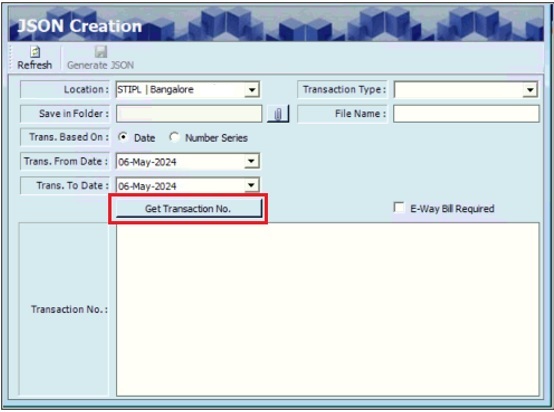
- The user must select the Transaction Type as ‘Invoice.’
- The user must select the appropriate path of the Folder, to save the generated JSON file.
- Click the Attach option of the Save in Folder field.
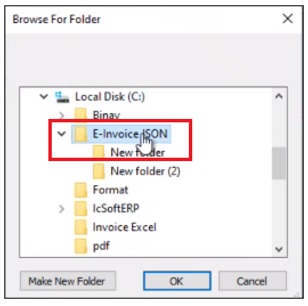
- The user should select the appropriate Folder and click OK.
- The user should enter the appropriate File Name.
- The user can search for transactions based on the Date or Number Series.
- If the user selects Date, the user should select the appropriate Transaction From Date and Transaction To Date from the dropdown calendar.
- Click Get Transaction Number, the transaction numbers will appear as shown below.
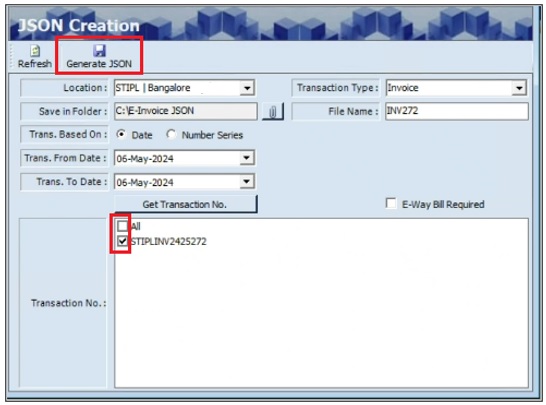
- The user should select the appropriate checkbox for Transaction Number.
- The user can select the checkbox for All, to select all listed transactions.
- Click Generate JSON, the following message will appear.
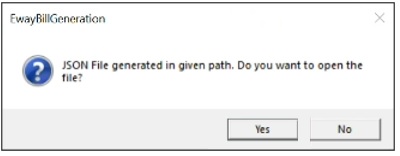
- Click Yes, to open the file.
¶ E-Way Bill System - Login
The user should log in to E-Invoice 1 Portal using the following link.
Click the URL: Login | E-WayBill System (ewaybillgst.gov.in)
Navigation: Home → Login
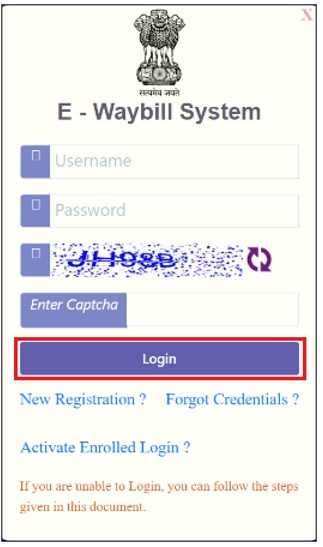
- The user should enter the User Name, Password and Captcha.
- Click Login, the following message will appear.
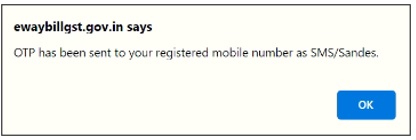
- Click OK, the following screen will appear.
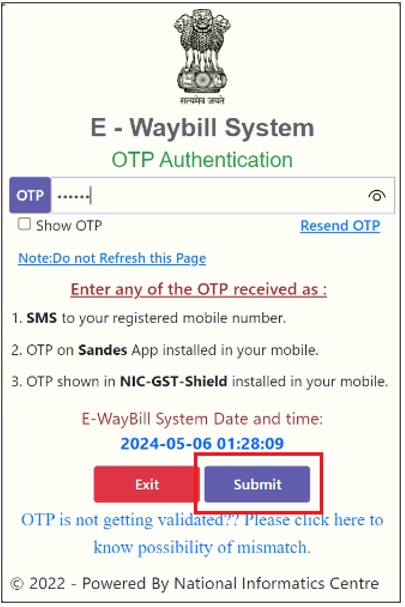
- The user should enter the OTP (One Time Password) received on the registered mobile.
- Click Submit.
¶ Upload JSON File
The Invoice Bulk Upload screen allows the user to upload a JSON file and generate an IRN file.
Navigation: Home → Login → e-Invoice Portal → e-Invoice → Bulk Upload
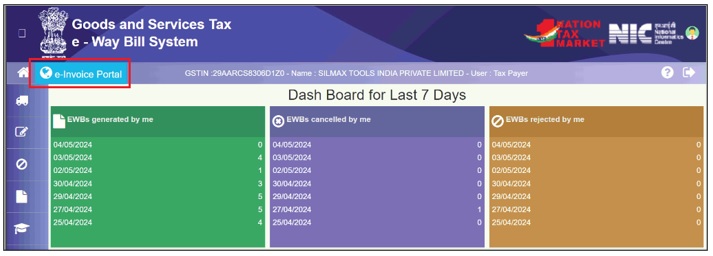
- Click e Invoice Portal, the following screen will appear.
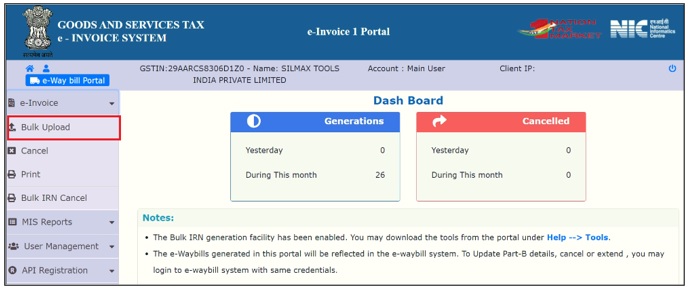
- Click Bulk Upload, the following screen will appear.
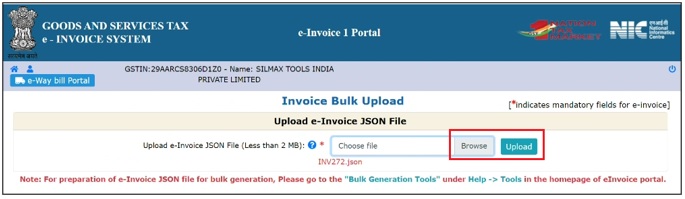
- Click Browse, to upload the JSON file.
- Click Upload, the screen will appear as shown below.
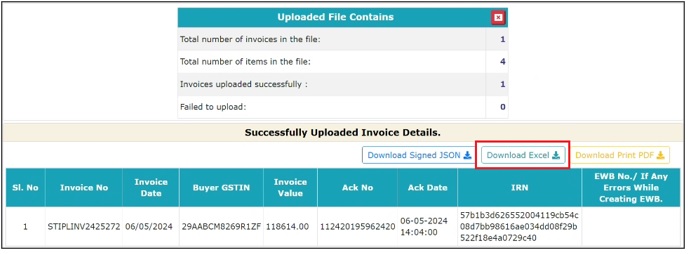
- Click Download Excel.
- Once the IRN file is downloaded the user should enter Y for Status as shown below.

¶ Upload IRN file
The Import From Excel For Masters screen allows the user to enter columns of Excel (Excel Position) for its field descriptions, and this is a one-time setting.
Navigation: Main – Menu → Transactions → Interface → EInvoice Interface → GST Portal API → Tools → Imports From Excel for Masters
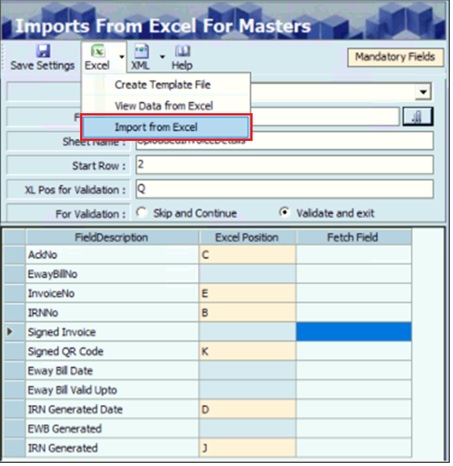
- Click Import From Excel, the Imported Successfully message appears.
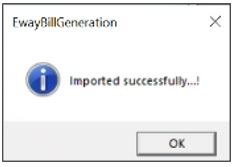
- Click OK.
¶ View Invoice Details
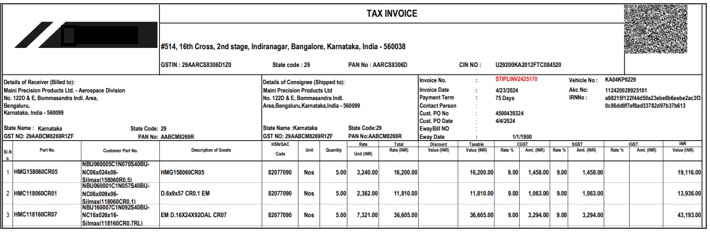
The Tax Invoice screen displays the invoice details such as Ack No., IRN No., Vehicle No. and QR code.
Navigation: Main - Menu → Transactions → Shipping → Shipping Entries → Shipping → Show List → Shipping Module → Invoice Regular → Pending Packing Lists to be Invoiced → Invoice Packed Lists → Invoiced Packing Lists → View → Preview
¶ Update Cancelled Transaction
The Update Cancelled Transaction screen allows the user to cancel the generated E-Invoice if required.
Navigation: Main – Menu → Transactions → Interface → E-Invoice Interface → GST Portal API → Tools → Update Cancelled Transaction
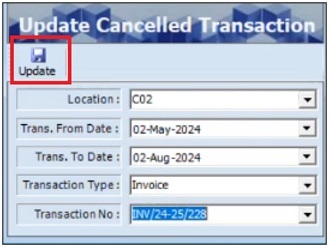
- The user must select the appropriate Location from the drop-down list.
- The user must select the appropriate Transaction From Date from the drop-down calendar.
- The user must select the appropriate Transaction To Date from the drop-down calendar.
- The user must select the appropriate Transaction Type from the drop-down list.
- The user must select the appropriate Transaction No. from the drop-down list.
- Click Update, the following message will appear.
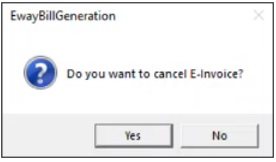
- Click Yes, the following message will appear.
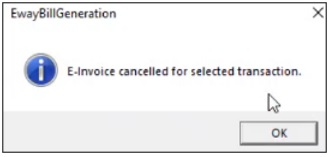
- Click OK.
¶ Functional Use Cases
| Sl. No. | Use Case | Business scenario | Functional outcome |
|---|---|---|---|
| 1 | Create JSON file for e-invoice | The user needs to generate a JSON file for completed invoice transactions for seamless e-invoicing. | The system allows selecting transaction type as “Invoice,” folder path, file name, and transaction numbers by date or series. It generates the JSON and displays a prompt to open the file. |
| 2 | Upload JSON to GST e-invoice portal | The user wants to upload the JSON file to the government’s e-invoice portal for IRN generation. | The user logs in to the portal using credentials and OTP, navigates to the bulk upload area, uploads the JSON file, and downloads an IRN Excel report. |
| 3 | Import IRN data into IcSoft system | The user needs to import the IRN and acknowledgement data back into IcSoft from the downloaded report. | The user configures field mappings via “Import From Excel for Masters,” uploads the Excel, and receives confirmation of successful import. |
| 4 | View invoice details post-IRN generation | The user wants to verify the status of e-invoicing after JSON upload and IRN generation. | The system displays invoice acknowledgment number, IRN, vehicle number, and QR code on the Tax Invoice screen. |
| 5 | Update cancelled e-invoice transaction | The user needs to cancel a previously generated e-invoice in case of errors or changes. | The user filters transactions by location, date, type, and number, then updates the cancelled transaction; the system prompts confirmation and updates accordingly. |
¶ Use Case Scenario
- Click here for a detailed use case scenario.
¶ Transaction Checklist
| Steps | Checklist Item | Details / Purpose |
|---|---|---|
| 1 | Completion of Regular Invoice Transaction | Ensure that all regular invoice transactions are created, verified, and approved before generating the JSON file. This ensures accurate data extraction for e-invoicing. |
| 2 | User Access Rights Verification | Confirm that the user has the necessary access rights to perform e-invoice interface operations, including JSON creation and upload. |
| 3 | Folder Path Availability | Verify that the designated folder path for saving JSON files is available, accessible, and has write permissions for the current user. |
| 4 | Transaction Type Selection | Confirm that the transaction type is selected as ‘Invoice’ to generate JSON for the correct document category. |
| 5 | Date Range / Number Series Validation | Check that the correct date range or number series is selected to include only the intended transactions in the JSON file. |
| 6 | GSTIN and Business Location Validation | Verify that the company’s GSTIN and business location details are correctly defined in the system to ensure proper reporting to the GST portal. |
| 7 | Invoice Data Accuracy Check | Ensure that all mandatory invoice fields (Customer GSTIN, Item HSN, Tax Rate, Quantity, UOM, Value, etc.) are complete and accurate. Missing data may lead to JSON validation errors. |
| 8 | Internet and Portal Access | Confirm that the system has stable internet connectivity and that the user can access the E-Invoice 1 Portal (ewaybillgst.gov.in) for uploading JSON files. |
| 9 | E-Invoice Portal Credentials | Ensure that valid login credentials (Username, Password, and registered mobile number for OTP) for the E-Invoice / E-Way Bill system are available. |
| 10 | Excel Import Mapping (One-Time Setup) | Verify that the Excel field mapping for “Import From Excel for Masters” is correctly defined if the process involves importing IRN details or master updates. |
| 11 | IRN File Folder Path | Confirm the destination path for storing downloaded IRN files after successful JSON upload, for future reference and audit. |
| 12 | Mail Server / Communication Setup | Ensure mail server details are configured if IRN acknowledgement or error reports need to be emailed to users automatically. |
| 13 | Cancelled Transaction Records Review | Review any cancelled or pending transactions to ensure that JSON generation is performed only for valid and active invoices. |
| 14 | System Date and Time Validation | Verify that the system date and time match the actual current time zone to prevent timestamp mismatches in the generated JSON file. |