¶ Purpose
Purchase orders are raised to purchase items such as raw materials, consumables, and others and convert them into finished goods or directly order finished goods and dispatch them to the customer.
¶ Prerequisites
The following transactions must be completed before the General Purchase Order transaction.
- The Prefix Combination Setting needs to be updated.
- The user access rights transaction must be completed.
- The Item Master with HSN code needs to be checked.
- The Active checkbox must be selected for a particular Item in the Item Master.
- Stock UOM and Purchase UOM need to be checked in Item Master.
- The GST-TCD needs to be checked.
- The PTCD-Master needs to be updated if required.
- The Supplier Master needs to be defined.
- The Employee Master needs to be updated if required.
- The Profit Center master needs to be checked.
- The Capital Budget details must be checked if required.
¶ General Purchase Order
The General Purchase Order screen allows the user to raise the Purchase Order for purchasing the items.
Navigation: Main - Menu → Transactions → Purchase → Purchase Entries → Purchase → Show List → Purchase Order → General Purchase Order
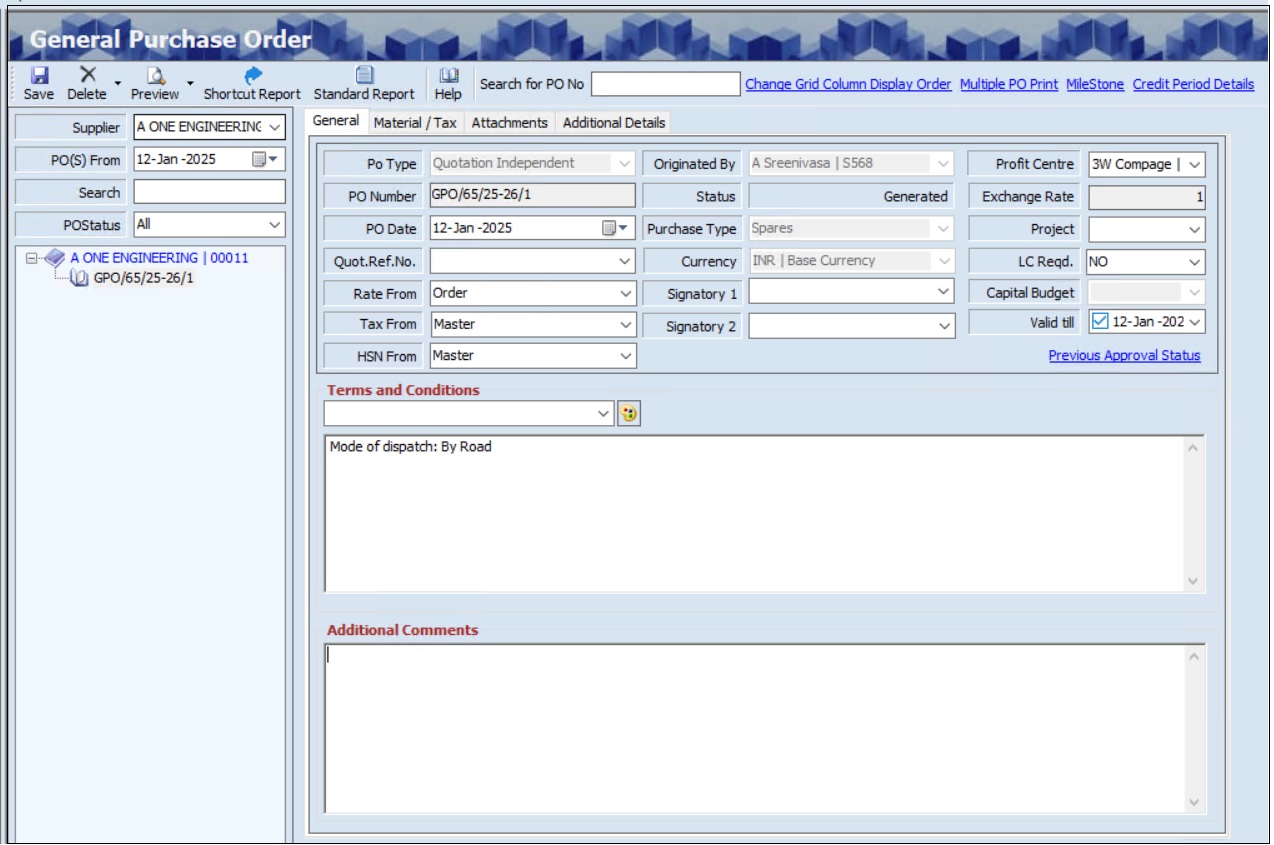
- The user must select the Supplier from the drop-down list from the left panel of the screen.
- The user can search for a particular purchase order based on the Supplier, PO(S) From (Date) and PO Status.
- The General Purchase Order screen allows the user to enter the details into four tabs as mentioned below.
- General
- Material/Tax
- Attachments
- Additional Details
- The General screen allows the user to select the appropriate PO Type from the drop-down list. If the user selects the PO Type as ‘Quotation Dependent’ then the user must select the Quot. Ref. No. from the drop-down list.
- The user must select the Purchase Type and Profit Center from the drop-down list.
- The user must select the Rate From, Tax From, HSN From, Originated By, Project and LC Required from the drop-down list.
- If the user selects the Rate From, Tax From and HSN from ‘Master’, the Price (PTCD), Tax (GST - TCD) and HSN (HSN master) details will be derived from the corresponding masters.
- If the user selects the Rate From, Tax From and HSN from ‘Order’, the user must enter the Price, Tax and HSN details.
- The user must select Signatory 1 and Signatory 2 from the drop-down list for the stages approval process.
- The user can select the Capital Budget from the drop-down list if required.
- The user must select the appropriate Valid Till date from the drop-down calendar.
- The user can select the appropriate Terms and Conditions (fixed and variable).
- The user can enter the Additional Comments if any.
- The Material /Tax screen allows the user to add material details.

- The user must click the material grid and press F3, the following material list will appear.
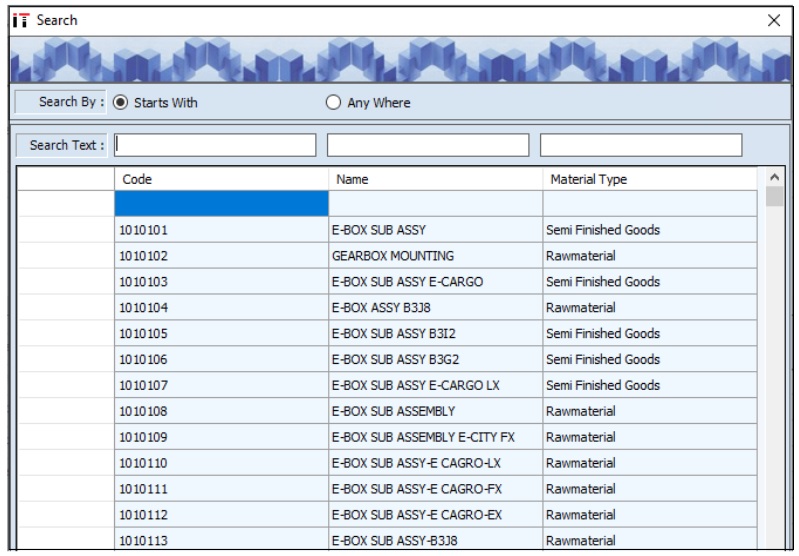
- The user can search for a particular material based on the Code, Name and Material Type.
- Once the user selects the appropriate material, the SL No., Material Category, Alloy, UOM, Stock UOM, Item Description, Description/Remark, HSN Number and Basic Account Ledger details will appear.
- The user must enter Qty (Quantity) details.
- Double click on the grid, the following screen appears.
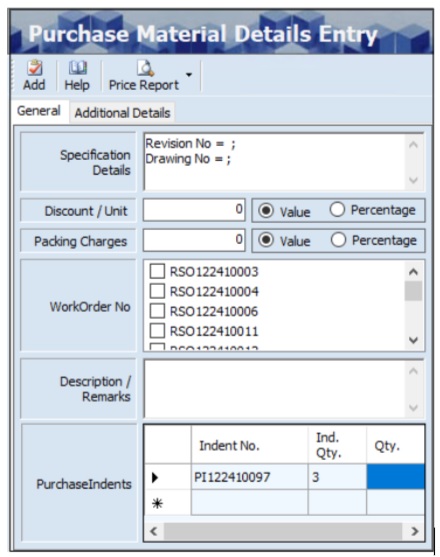
- The Purchase Material Details Entry screen displays details such as Specification Details, Work Order No., and Purchase Indents (Indent No. and Ind Qty).
- The user can enter the Discount/ Unit and Packing Charges if any.
- The user can select the appropriate checkbox for the Work Order Number, to purchase material based on the Work Order.
- The user can enter the Description /Remarks for each material.
- The user can enter the Purchase Indents details such as Qty.
- The user can enter the Additional Details (Field and Value) for each material if required.
- Click Add.

- The user can click the Additional Detail link, to add additional details of each material.
- The user can click the Tax Detail link, to add tax details for each material and the following screen will appear.
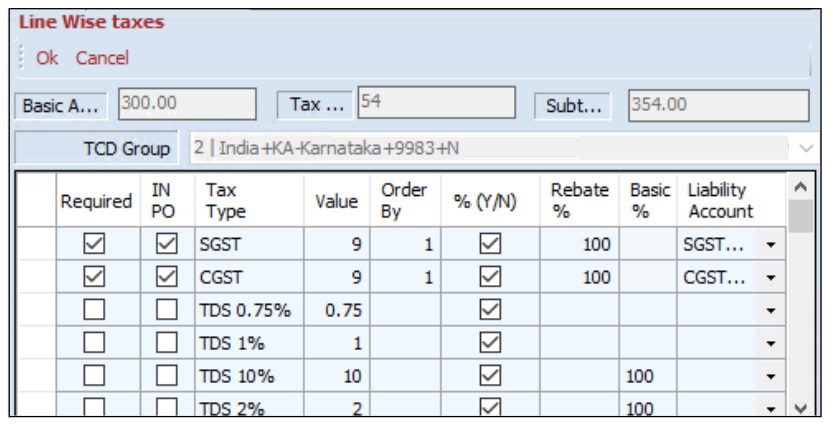
- The Line Wise Taxes screen displays details such as Basic Amount, Tax, Subtotal, TCD Group, Required, IN PO, Tax Type, Value, Order By, %(Y/N), Rebate %, Basic % and Liability Account.
- Click OK, the screen will appear as shown below.
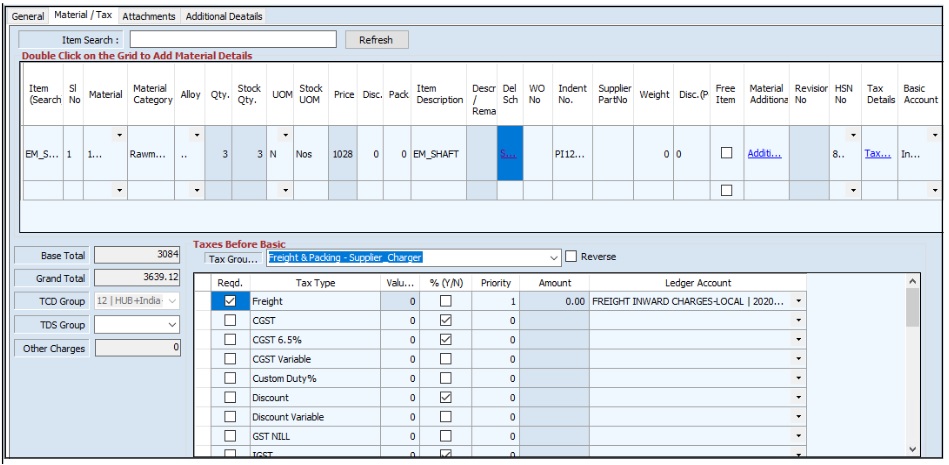
- The Material /Tax screen displays the details such as Item Search, Sl. No., Material, Material Category, Alloy, Qty, Stock Qty, UOM, Stock UOM, Price, Disc (Amt), Pack (Amt), Description/ Remarks, Del sch., WO No., Indent No., Supplier Part No., Weight, Disc (Perc), Free Item, Material Additional Details, Revision No., HSN No., Tax Details, Basic Account, Base Total, Grand Total, TCD Group, Tax Group Tax Type, Value, Account and Ledger Account.
- The user can select the appropriate TDS Group from the drop-down list.

- The item search allows the user to search for the material listed in the purchase order based on the material name or code.
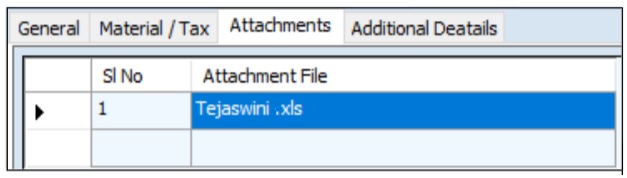
- The Attachments section allows the user to upload attachments, view the uploaded attachments and delete the uploaded attachments if required.
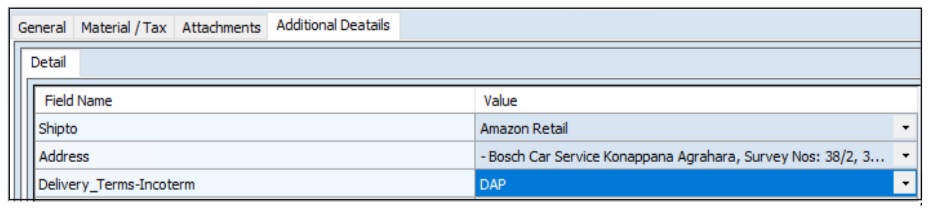
- The Additional Details section allows the user to enter additional details such as Field Name and Value (Ship to, Address and Delivery Terms) based on the requirement.
- The screen below displays an example of additional parameter details.
- Click Save, the Purchase Order (PO) number will appear on the left panel of the screen and the following message will appear.
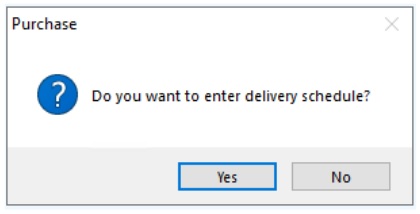
- Click Yes, the following screen appears.
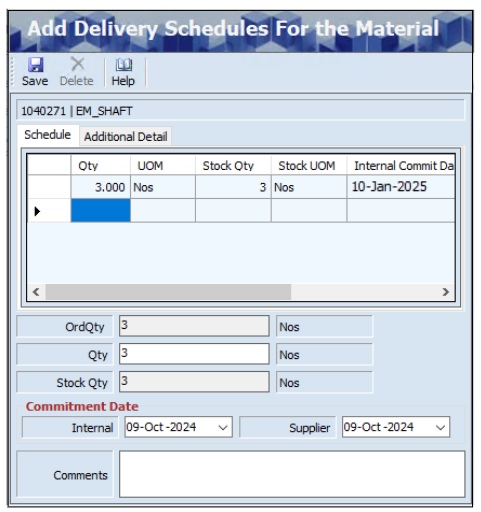
- The Add Delivery Schedules For the Material screen displays details such as Ord. Qty and Stock Qty.
- The user must enter details such as Qty.
- The user must select the appropriate Commitment Date (Internal and Supplier) from the dropdown calendar.
- The user can enter the Comments.
- Click Save, to add delivery schedule details.
Note: The Supplier's commitment date must be the same as or earlier than the Internal commitment date.

- Click the Change Grid Column Display Order link, to change the column position of the material detail if required.
- Click the Credit Period Details link, to add credit period details based on the GRN or Invoice.
¶ Copy From
The Copy From link allows the user department to copy details of material from the existing purchase order.

- Click Copy From, the following screen appears.
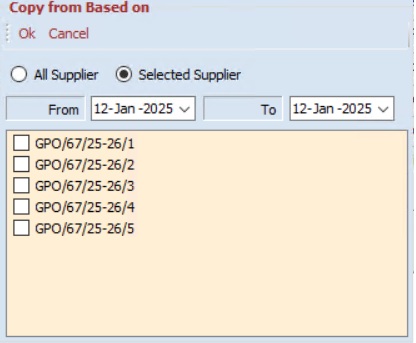
- The user must select either All Departments or Selected Department.
- The user can select From and To Date from the drop-down calendar.
- The user must select the checkbox for the appropriate Purchase Order Number.
- Click OK, to copy material details.
¶ Multiple PO Print
The Multiple Excel Print screen allows the user to print multiple purchase orders at the same point of time.

- Click the Multiple PO Print link, the following screen appears.
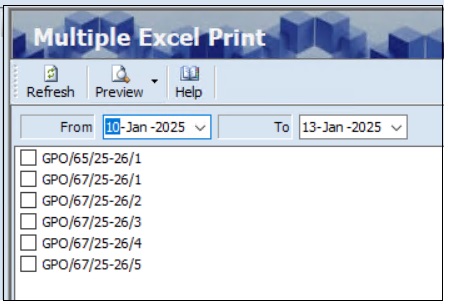
- The user can search for purchase order details based on the From Date and To Date.
- Click Refresh, the list of purchase order reference numbers will appear.
- The user must select the checkbox for the appropriate PO reference number.
- Click Preview, to preview details in Excel or HTML format.
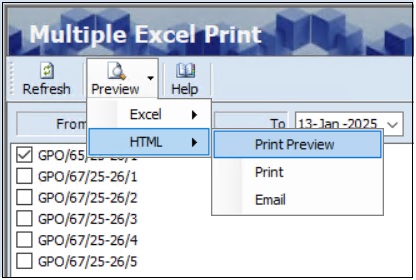
- Click Print Preview, the following screen will appear.
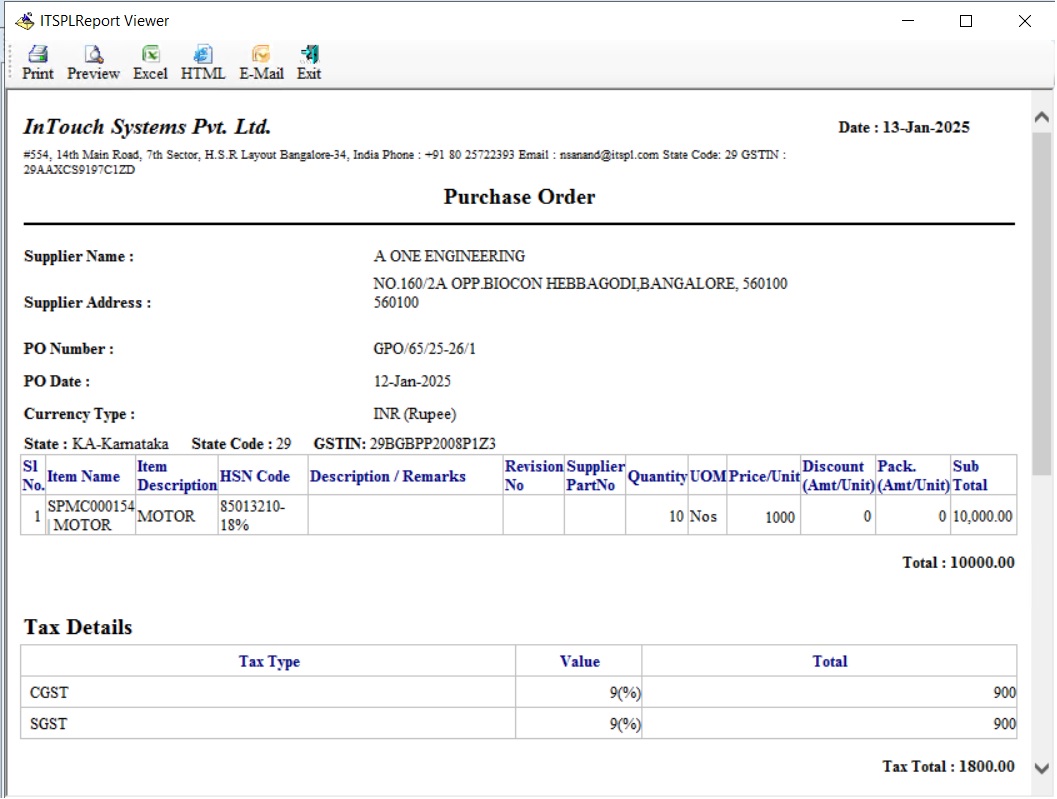
- The ITSPL Report Viewer screen allows the user to print all selected documents one after one. Click Print, to print documents.
- Click Preview, to view details before printing.
- The user can view details in Excel and HTML format if required.
- Click Email, the following screen will appear.
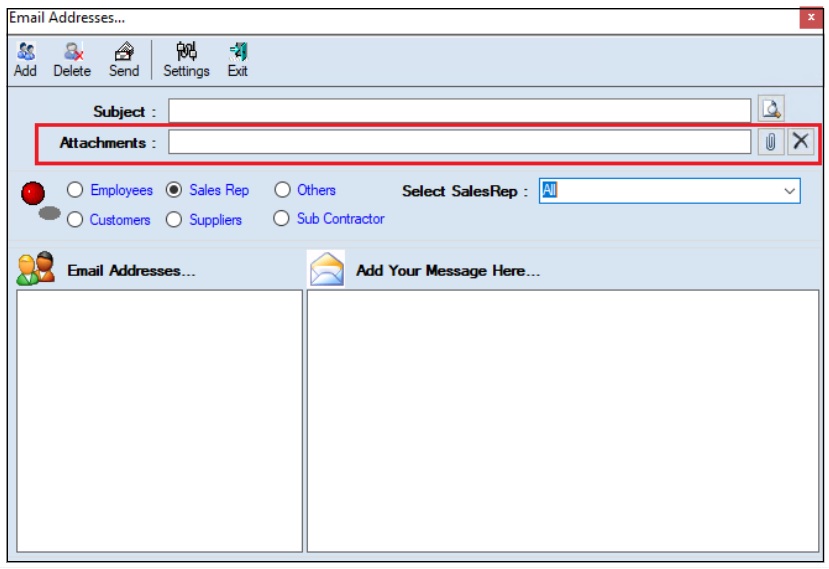
- The user must enter the Subject.
- The user can upload multiple attachments if required.
- The user can delete the uploaded attachments if required.
- The user must select one of the options from Employees, Customers, Sales Rep, Suppliers, Subcontractors or Others.
- Once the user selects the appropriate option, the corresponding Email IDs will appear in the Email Address section.
- The Add Your Message Here section allows the user to add messages.
- Click Send, to send emails.
- Click Add, to add the new email address.
- Click Delete, to remove the selected mail ids.
- Click Setting, the following screen will appear.
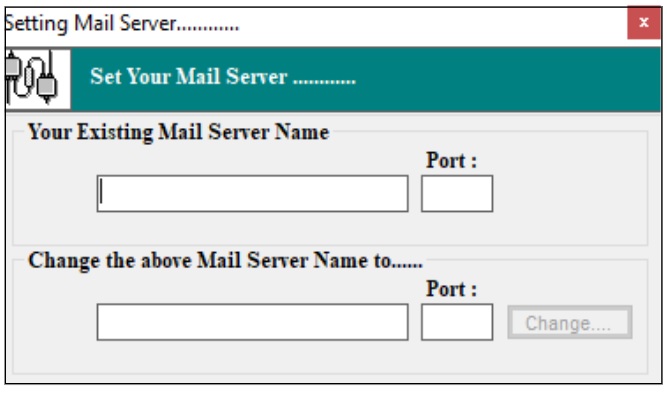
- The user must enter details of the Your Existing Mail Server Name, Port (Existing), Change the above Mail Server Name To and Port (New).
- Click Change.
¶ Previous Approval Status
The Previous stage Comments History screen allows the user to view details of the approval stages of the purchase order.

- Click the Previous Approval Status link, the following screen appears.
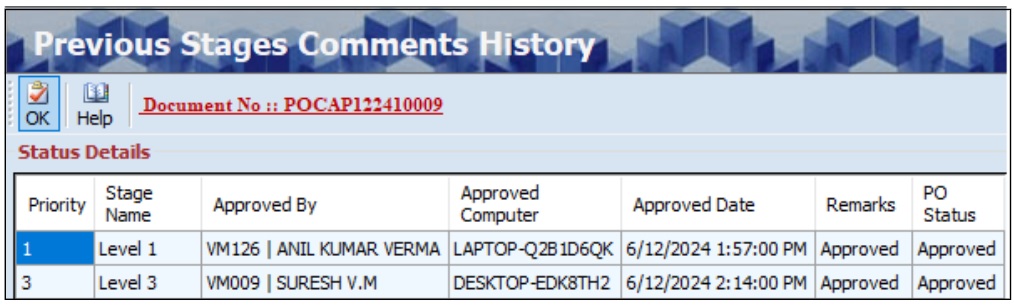
- The Previous stage Comments History screen displays details such as Priority, Stage Name, Approved By, Approved Computer, Approved Date, Remarks and PO status.
¶ Milestone Entry
- The Milestone Entry screen allows the user to enter pre-determined payment details that will be released when the project reaches a specific milestone or makes advance payments.

- Click the Milestone link, the following screen appears.
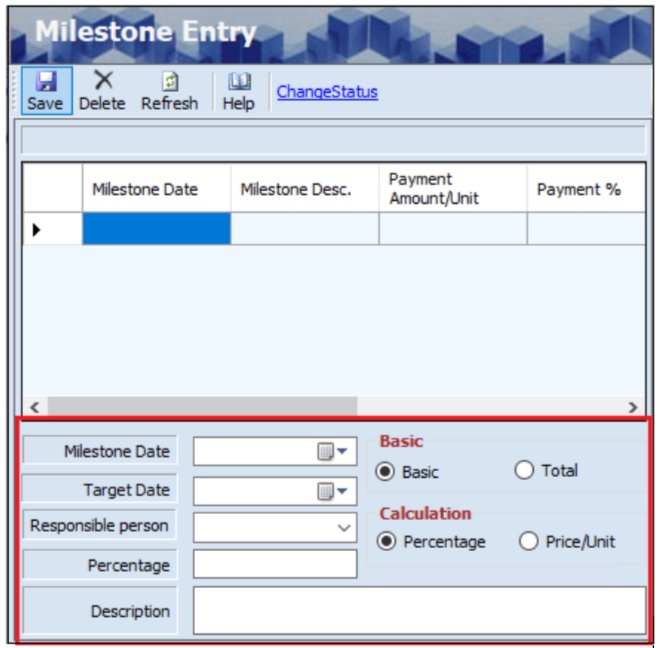
- The user must select the appropriate Milestone Date and Target Date from the drop-down calendar.
- The user must select the appropriate Responsible Person from the drop-down list.
- The user can select the payment based on either Basic or Total.
- The user can select the calculation based on either Percentage or Price/Unit.
- If the user selects calculation based on the percentage, the user must enter the Percentage.
- If the user selects calculation based on the price/unit, the user must enter the Price (Payment Amount).
- The user must enter the Description.
- Click Save, the following message will appear.
- Click OK, the screen will appear as shown below.
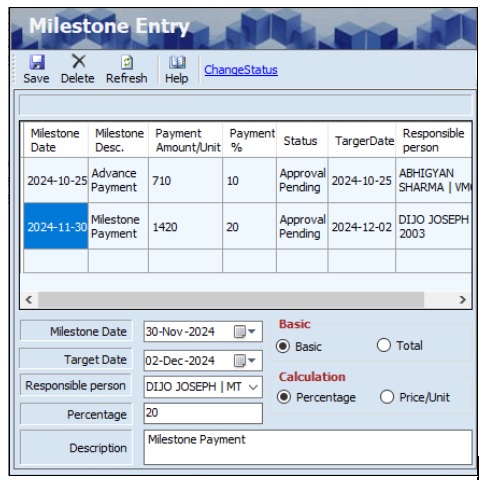
- Click the Change Status link, the following screen appears.
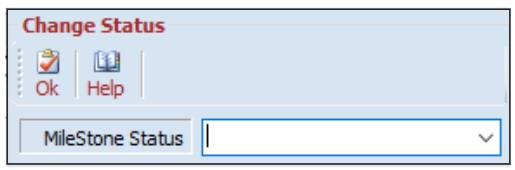
- The user must select the appropriate Milestone Status from the drop-down list.
- Click OK.
¶ Send For Approval
The Send For Approval screen allows the user to send the purchase order for approval.

- Click the Send For Approval link, the following message appears.
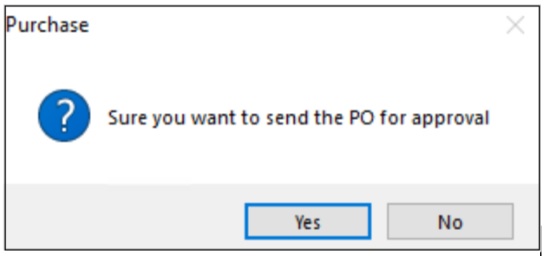
- Click Yes.
¶ View or Print Purchase Order
The Preview option allows the user to view and print the created or existing PO details.

- The user must select the Supplier from the drop-down list.
- The user must select the PO(S) From (Date) from the drop-down calendar.
- The user must select the order reference number from the left panel of the screen.
- Click Preview, the user must select one of the HTML, Excel, Schedule Print, Open Office option or Export To PDF options.
- If the user selects the HTML option, the following screen will appear.

- The ITSPL Report Viewer screen allows the user to print all selected documents one after another.
- Click Print, to print documents.
- Click Preview, to view details before printing.
- The user can view details in Excel and HTML format if required.
- Click Email, the following screen will appear.
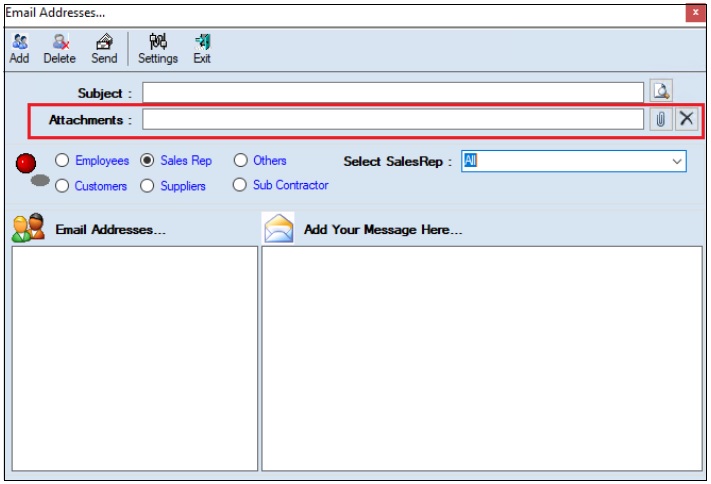
- The user must enter the Subject.
- The user can upload multiple attachments if required.
- The user can delete the uploaded attachments if required.
- The user must select one of the options from Employees, Customers, Sales Rep, Suppliers, Subcontractors or Others.
- Once the user selects the appropriate option, the corresponding Email IDs will appear in the Email Address section.
- The Add Your Message Here section allows the user to add messages.
- Click Send, to send emails.
- Click Add, to add the new email address.
- Click Delete, to remove the selected mail ids.
- Click Settings, the following screen will appear.
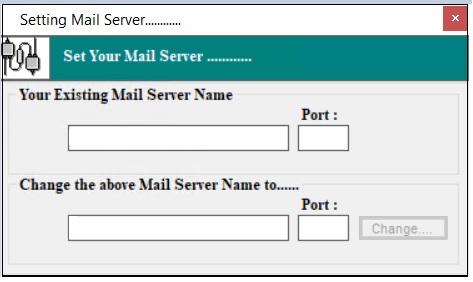
- The user must enter details of the Your Existing Mail Server Name, Port (Existing), Change the above Mail Server Name To and Port (New).
- Click Change.
¶ Delete Purchase Order
The Delete option allows the user to delete the existing or added purchase order details if further or subsequent transactions are not executed.

- The user must select the Supplier from the drop-down list.
- The user must select the PO(S) From (Date) from the drop-down calendar.
- The user must select the order reference number from the left panel of the screen.
- The user must select the Material from the Material/ Tax section.
- Click Delete, the system allows the user to select either Selected Material or All Material, and the following message will appear.

- Click Yes, the following message will appear.

- The user must enter the Description / Comments.
- Click Ok, to delete selected details.
¶ Functional Use Cases
| SL No. | Use Case | Business Scenario | Functional Outcome in ERP |
|---|---|---|---|
| 1 | Create General Purchase Order | The user needs to order raw materials, consumables, or finished goods for production or dispatch to customers. | The system allows the user to create a purchase order, select the supplier, enter material details, and assign approval signatories. |
| 2 | Enter Material / Tax Details | The user adds material quantities, price, tax, HSN codes, and work order or indent references. | The system calculates the total cost, taxes, and updates the PO material grid with all details. |
| 3 | Add Attachments | The user uploads documents like quotations, specifications, or purchase agreements. | The system stores uploaded attachments with the PO and allows viewing or deletion. |
| 4 | Add Additional Details | The user enters extra fields like delivery address, delivery terms, or custom fields. | The system allows the user to enter additional details. |
| 5 | Add Delivery Schedules | The user enters delivery dates, quantities, and comments for each material. | The system saves the delivery schedule and ensures supplier commitment dates align with internal dates. |
| 6 | Save Purchase Order | The user finalizes the PO after entering all required details. | The system generates a unique PO number, saves the PO in ERP, and makes it available for approvals. |
| 7 | Send PO for Approval | The user sends the created PO for departmental approval. | The system triggers the approval workflow according to defined signatories and limits. |
| 8 | View / Print / Email PO | The user wants to view, print, or email the PO. | The system provides preview, print, Excel/HTML export, or email functionality with attachments. |
| 9 | Copy Material Details | The user wants to reuse material details from an existing PO. | The system copies material lines from selected POs to the current PO. |
| 10 | Delete Purchase Order | The user wants to remove a PO if no subsequent transactions are executed. | The system allows deletion of selected or all material lines and updates PO status accordingly. |
| 11 | Milestone / Payment Entry | The user wants to define milestone-based payments for the PO. | The system allows entry of payment percentage or amount based on milestones and tracks milestone status. |
¶ Use Case Scenario
- Click here for a detailed use case scenario for the General Purchase Order transaction.
¶ Transaction Checklist
| Steps | Checklist Item | Details / Purpose |
|---|---|---|
| 1 | Verify Prefix Combination Setting | Ensure the prefix combination setting is updated to generate proper purchase order numbers. |
| 2 | Check user access rights | Confirm that access rights are assigned to the user for creating General Purchase Orders. |
| 3 | Validate Item Master | Ensure the Item Master is defined with HSN codes and the Active checkbox is selected. |
| 4 | Confirm UOM settings | Verify that Stock UOM and Purchase UOM are correctly defined in Item Master. |
| 5 | Validate GST-TCD settings | Check that GST Tax Category Details (TCD) are updated to apply the correct tax rules. |
| 6 | Validate PTCD Master | Ensure PTCD Master is updated if required for correct pricing and charges. |
| 7 | Check Supplier Master | Confirm Supplier Master records are properly defined and active. |
| 8 | Validate Employee Master | Verify that Employee Master details are updated for approvals and responsibilities. |
| 9 | Check Profit Center | Ensure the Profit Center master is created and available for selection. |
| 10 | Verify Capital Budget (if required) | Check capital budget details if the purchase involves capital expenditure. |
| 11 | Prepare supporting documents | Ensure quotations, specifications, or indent references are available if required. |
| 12 | Review approval signatories | Confirm that Signatory 1 and Signatory 2 are defined for the PO approval process. |
| 13 | Refresh repository | Refresh repository to ensure all recent updates to masters, user rights, and tax details are reflected. |