¶ Purpose
The purpose of the Purchase Indent transaction is to initiate a controlled procurement request when materials are insufficient, ensuring that all purchase requirements are formally recorded, justified, and approved before procurement, thereby preventing unauthorised purchases and maintaining inventory control.
¶ Prerequisites
The following transactions must be completed before the Purchase Indent transaction.
- The Prefix Combination Setting needs to be updated.
- The access rights must be assigned to the corresponding user for the specified location.
- The Item master with the HSN code needs to be checked.
- The Department master needs to be defined.
- The Employee master needs to be updated if required.
- The list of employees will appear based on the selected location.
- The Profit Centre master needs to be checked.
- The Capital Budget details must be checked if required.
- The Currency master needs to be updated if required.
¶ Purchase Indent
The Purchase Indent screen allows the user department to raise the purchase indent for required materials.
Navigation: Main - Menu → Transactions → Purchase → Purchase Entries → Purchase → Show List → Purchase Indent → Purchase Indent

- The Purchase Indent screen displays the details in three tabs as mentioned below.
- General
- Attachments
- Additional Details
- The General section displays details such as Ref No., PO (s) for, Currency, Category, Requisition Date, Status, and Exchange Rate.
- The user must select details such as the Department, Supplier, Employee and Profit Centre from the drop-down list.
- The user can edit the Currency details if required.
- The user must select Approval By from the dropdown list for the approval process.
- The user can enter Indent Type, which will appear in the dropdown while doing the next transaction.
- The user can select the Capital Budget from the dropdown list if required.
- Double-click on an empty row to add the material details, the following screen appears.

- The Material Details screen displays the details in two tabs as mentioned below.
- Material
- Schedules
- The Material screen allows the user to select the Material from the drop-down list.
- Once the user selects the appropriate Material, the Alloy, Specification Details, UOM and Stock Available details will appear.
- The user must enter details such as Quantity and Price.
- The user can enter the Weight if required.
- The user can select the appropriate Work Order Number checkbox if required.
- The user can enter the Description/Remark.
- The Schedules screen allows the user to schedule the delivery details. Multiple schedules can be entered by selecting different delivery dates, as shown below.

- The user must select the appropriate Date from the drop-down calendar.
- The user must enter the Quantity.
- Once the user enters the Quantity, the Stock Quantity details will appear automatically.
- The Attachments screen allows the user to upload material-specific attachments.
- The Additional Details link allows the user to enter material-specific additional details.
- Click OK, and the added material details will appear as shown below.

- The Attachment section allows the user to upload indent-specific attachments.
- The Additional Details section allows the user to enter additional details, such as Transportation Charges and Buyer.

- The Item Search option allows the user to search for the material listed in the indent based on the material name or code.
- Click Save, and the Purchase Indent (PI) number will appear on the left panel of the screen.
¶ Types of Purchase Indent
| Sl. No. | Indent Type | Used For | Stock Impact |
|---|---|---|---|
| 1 | Material | Production items | Yes |
| 2 | Capital | Fixed assets | Asset |
| 3 | Service | Services | No |
| 4 | Subcontracting | Job work | Yes |
| 5 | R&D | Testing / Trial | Yes / Expense |
| 6 | Emergency | Urgent need | Yes / No |
| 7 | Project | Project materials | Yes |
¶ Copy From
The Copy From link allows the user department to copy details of material from the existing purchase indent.

- Click Copy From, and the following screen appears.
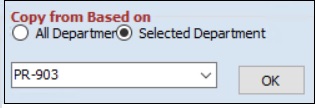
- The user must select either All Departments or Selected Department.
- The user must select the appropriate Purchase Indent Number from the drop - down list.
- Click OK, the following message appears.
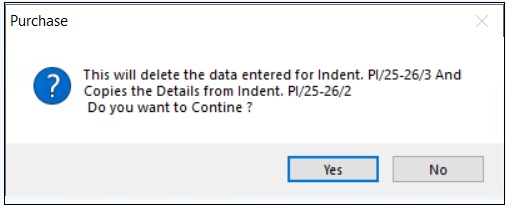
- Click Yes, to copy material details.
¶ Bulk Upload – Using Excel Import
The Excel – Import link allows the user to upload details using an Excel file.

- Click the Excel – Import link, the following screen appears.
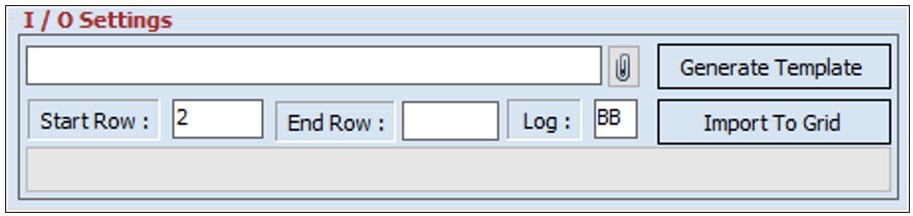
- Click Generate Template, to download the template Excel file.
- The user must enter details such as Start Row, End Row and Log.
- Once the user enters details, the user must upload the Excel.
- Click Import To Grid, the Grid Data Saved Successfully message appears.
¶ Purchase Indent For Store
The Release Store Requisition screen allows the user to raise a purchase indent based on the material requisition.

- The user must select the appropriate Department from the drop-down list.
- Click the Purchase Indent for Store link, and the following screen appears.

- The user can search for a particular material requisition detail based on the Material, WO No. and Employee. Click Refresh, the screen will appear as shown below.

- The Release Store Requisition screen displays details such as the Ref No., Ref Date, Material, Quantity, UOM, Issued Qty, Pending Qty, Available Stock Qty, Weight, Issued Wt., Pending Wt. and Available Stock Weight.
- The user must enter the Current Quantity.
- Click Release, and the added material detail will appear as shown below.

- The user must enter the delivery schedule details to raise the purchase indent.
¶ Multiple Indent Print
The Multiple Excel Print screen allows the user to print multiple purchase indents at the same time.

- Click the Multiple Indent Print link, the following screen appears.

- The user can search for purchase indent details based on the From Date and To Date.
- Click Refresh, the list of purchase indent reference numbers will appear.
- The user must select the checkbox for the appropriate PI reference number.
- The user can select multiple checkboxes.
- Click Preview, to preview details in Excel or HTML format.

- Click Print, to print details.
¶ Previous Approval Status
The Previous stage Comments History screen allows the user to view details of the approval stages of the purchase indent.

- The user can search for a particular PI based on the Department or Indents From.
- The user must select the appropriate Purchase Indent reference number.
- Click the Previous Approval Status link, and the following screen appears.

- The Previous stage Comments History screen displays details such as Priority, Stage Name, Approved By, Approved Computer, Approved Date, Remarks and PI status.
- Click OK, to navigate to the Purchase Indent screen.
¶ Preview or Print Indent Details
The Preview option allows the user to print or email the indent details.

- The user can search for a particular PI based on the Department or Indents From.
- The user must select the appropriate purchase indent reference number.
- Click Preview, and the user must select one of the options from HTML, Excel, or OpenOffice.
- If the user selects the HTML, the following screen will appear.

- The ITSPL Report Viewer screen allows the user to print customer return details.
- Click Print, to print documents.
- Click Preview, to view details before printing.
- The user can view details in Excel and HTML format if required.
- Click Exit, to navigate to the Purchase Indent screen.
- Click Email, the following screen will appear.
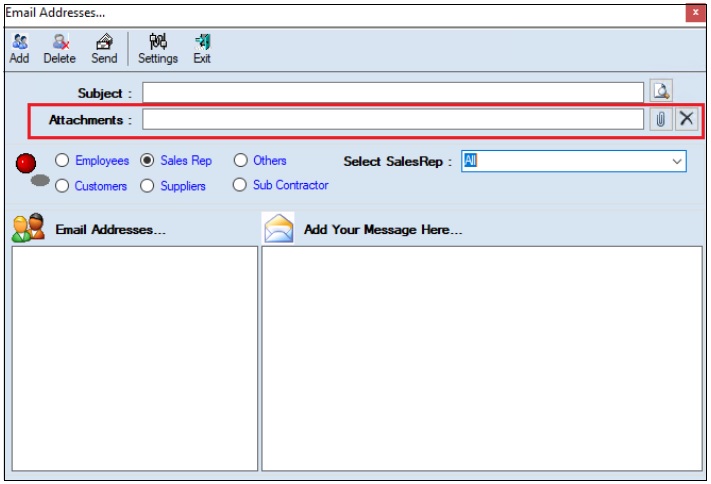
- The user must enter the Subject.
- The user can upload multiple attachments if required.
- The user can delete the uploaded attachments if required.
- The user must select one of the options from Employees, Customers, Sales Rep, Suppliers, Subcontractors or Others.
- Once the user selects the appropriate option, the corresponding Email IDs will appear in the Email Address section.
- The Add Your Message Here section allows the user to add messages.
- Click Send, to send emails.
- Click Add, to add the new email address.
- Click Delete, to remove the selected mail ids.
- Click Settings, the following screen will appear.
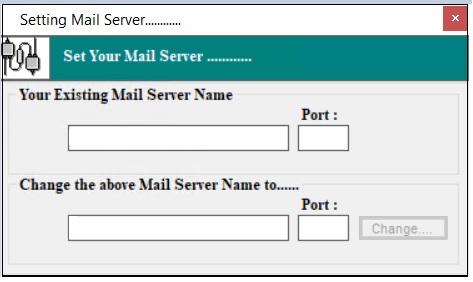
- The user must enter details of the Your Existing Mail Server Name, Port (Existing), Change the above Mail Server Name To and Port (New).
- Click Change.
¶ Delete Option
The Delete option allows the user to delete the added or existing transaction if further or subsequent transactions are not executed.

- The user can search for indents based on the Department and Indents From.
- The user must select the Indent (s) From (Date) the drop-down calendar.
- The user must select the purchase indent reference number from the left panel of the screen.
- The user must select a material from the material section.
- Click Delete, the system allows the user to select either Selected Material or All Material, and the following message will appear.

- Click Yes, the following message will appear.

- The user must enter the Description / Comments (Reason for Delete).
- Click OK, to delete the transaction.
¶ Functional Use Cases
| Sl. No. | Business Scenario | Action | Functional Outcome in ERP |
|---|---|---|---|
| 1 | The user identifies the need to procure materials for stock or project requirements. | The user creates a purchase indent with item details, quantity, and purpose. | The system records the material requirement in the form of a purchase indent. |
| 2 | The user wants to ensure the indent has valid and complete details. | The user enters location, indent date, department, and selects items with quantities. | The system validates the data and stores the indent with a unique number. |
| 3 | The requirement is specific to a project, department, or location. | The user tags the indent with relevant project, department, or branch details. | The system links the indent to the selected organizational units. |
| 4 | The user needs to track and control indents for approval or processing. | The system captures the indent’s status (New, Approved, Rejected, Short Closed, Closed, or Cancelled). | The system enables tracking of the indent lifecycle for further procurement processing. |
| 5 | The user wants to process an indent through approval before the purchase action. | The indent goes through defined approval stages set by the organization. | The system updates status upon each approval and routes it as per workflow configuration. |
| 6 | The user needs to convert approved indents into enquiries or orders. | The user initiates further processing, like enquiry generation or PO creation. | The system facilitates procurement planning and execution based on approved indent data. |
| 7 | The user wants to view indent history or audit usage. | The user accesses the indent history with reference and transaction linkage. | The system maintains audit trails and references to help with future verification. |
¶ Use Case Scenario
- Click here for a detailed use case scenario for the Purchase Indent transaction.
¶ Transaction Checklist
| Sl. No. | Checklist Item | Details / Purpose |
|---|---|---|
| 1 | Update Prefix Combination Setting | Ensure transaction prefix and numbering conventions are established and updated in the system. |
| 2 | Assign Access Rights | Assign proper user access rights for the transaction based on the location and role requirements. |
| 3 | Verify Item Master | Confirm that Item Master data including HSN codes is accurate and up to date. |
| 4 | Define Department Master | Check that department master records are complete and correctly configured. |
| 5 | Update Employee Master | Ensure employee master data is current, with employees properly linked to locations and roles. |
| 6 | Confirm Employee List | Validate the list of employees is complete and reflects the correct location associations. |
| 7 | Check Profit Center Master | Verify profit center configuration related to cost tracking and budgeting is accurate. |
| 8 | Confirm Capital Budget Details | If applicable, ensure capital budget information is assigned and verified. |